How to Selectively Block Android Apps from Using Internet
Learn how to Selectively Block Android Apps from Using Internet. Choose if an app should use only wifi, only mobile data, or no internet at all.
→Learn how to Selectively Block Android Apps from Using Internet. Choose if an app should use only wifi, only mobile data, or no internet at all.
→wLinker is a free application launcher for Windows. It lets you quickly launch your applications and system folders. You can also add custom shortcuts.
→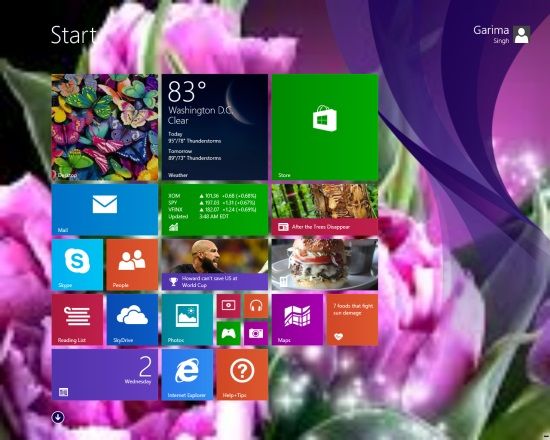
Windows 8 Start Screen Customizer is a free Windows 8 software to customize start screen background using pictures, slideshows, and desktop wallpaper.
→Notezilla is a free online service to learn to read sheet music. It plays music and shows its symbols to help you learn sheet music online.
→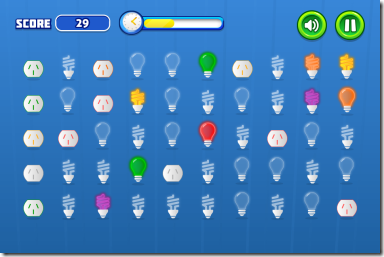
Tappy Bulbs is a free iPhone tapping game, like Piano Tiles, to tap and switch off bulbs which have been left on. Even a single mistake ends the game.
→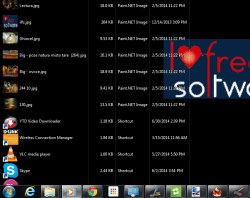
DesktopFolderSwitcher is a free software to view contents of any folder on the desktop. You can add many folder paths and see contents of any of them.
→Epic is a free privacy centric web browser based on Chromium. It runs in an extreme private mode, and completely removes or blocks all tracking services.
→
Drudge Reader is a free Windows 8 newspaper app to read Drudge Report News at your Desktop. It has wide coverage of latest news with relevant pictures.
→Auto PDF Splitter is a free PDF Splitter to split PDF into single pages. It can monitor any folder for new PDF and automatically split that PDF.
→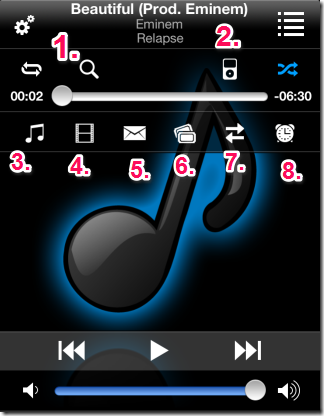
myTunz is a free iPhone media player app which supports gesture control, sleep timer, playback timer, song search on iTunes, YouTube, sharing on Facebook.
→
Here is a list of 5 free websites to create YouTube playlist online. You can create a playlist of your favorite songs and share them with your friends.
→
InstaShape for Android is a free app for Android which allows you to add cool shapes to your photos.
→
IceCream PDF Split & Merge is a free PDF splitter merger software. It helps to preview PDF before performing the task. Also supports password protected PDFs.
→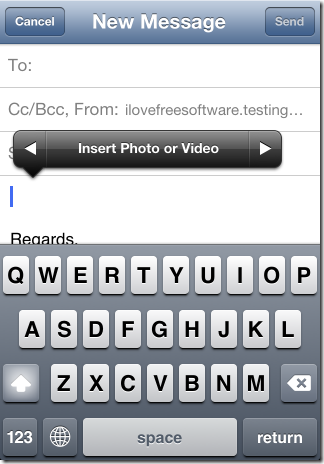
This article talks about 4 mail tips for iPhone which will help you in improving efficiency and the way you use iPhone’s native mail app.
→