yagodu is a personal information manager and encryptor that you can use in order to add protection to your passwords, but also to various texts that you would like to keep from being accessed by others. In a sense yagodu would be a password vault, but the features which yagodu offers do not only cover passwords, you can use it to protect and keep safe pretty much any text that you might have which needs protecting.
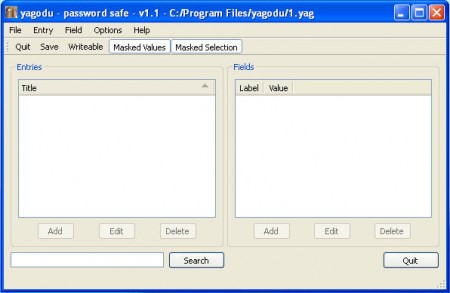
It might take you a little bit longer to fully understand how exactly yagodu works, but it’s not something overly complicated. Hopefully the short explanation that I’ll write here will help you understand things more quickly and protect your data more effectively. Program interface is very intuitive and the important options are all laid out for you, there’s no menu digging or anything else like that. The first step that you should do would be to save and password protect your file, let’s have a look how you might do that.
Using yagodu to protect important information
After you open up the program for the first time, click on File >> Save and you will be shown the basic save dialog, but with one exception that you’ll have to enter in a password:
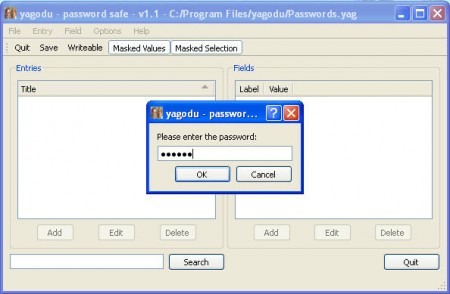
It’s best that you use the Windows On Screen Keyboard to enter in the password here, so that you bypass software which is tracking keyboard strokes, that you might have on your computer unknowingly, from picking up your password. The same thing goes for passwords that you’re entering inside yagodu.
After the file is saved, click on the Writable option in order to make it writable, this is just another layer of protection that yagodu has from automated file tampering. After the file has been made writable you will need to click on Entry >> Add top level entry which should create a new item inside the left box called Entry:
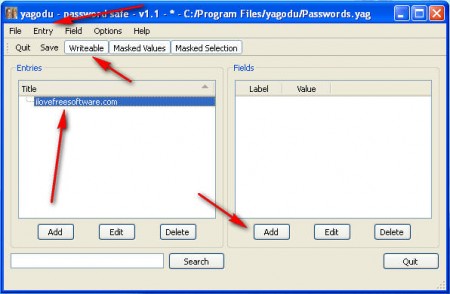
Next step after creating a top level entry would be clicking Add on the right side of the program, under Fields area, to add a new Field in which information can we written.
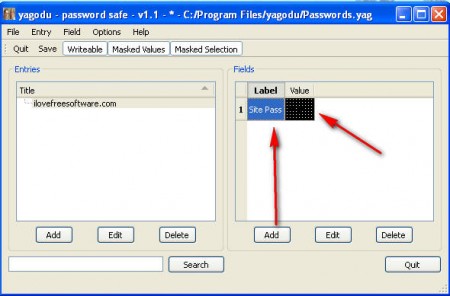
Add a name for this field, if you’re going to use it to store information about Facebook for example, call it Facebook. The blackened area on the right side is where you can enter the info which needs protection. Don’t forget the advice which was given about using the On Screen Keyboard to avoid keystroke tracking. Also don’t have anyone around when typing in info inside the field, because it will be visible and someone might see your password, if password is the thing which you are protecting.
Conclusion
That’s basically it, data is protected by adding it to this hidden field, and every time that you add new info, simply save the password file. Those who want to open this file in yagodu will have to know the password. Even though the program is pretty basic, it does the job and data kept in it will be protected for sure, and you can sleep more easily knowing that your info protected.
