Capture Frame is free software which you can use to capture frames from the AVI video file format. Extracting still shots of videos can come in very handy if we are watching a video lecture for example, and if there is a frame inside the video where data which is important for you is displayed. With Capture Frame you can easily create a snapshot of that frame, and a lot more than just that.

I mentioned that with Capture Frame you can make screen grabs of AVI video format, you might be wondering why only this format. Well despite of our best efforts, we haven’t managed to open up any other format inside this video screen grabber, and this is definitely a drawback, but if you mainly have AVI videos where you need to capture frames then Capture Frame is the tool for you.
Similar software: iWisoft Free, SnapDraw
Capture video frames with Capture Frame
First step in capturing frames with the help of Capture Frame would be to open up the video from which you want to take frames and save them as pictures. Images are saved in the JPEG file format and there are 3 different quality settings that you can use on the images:
- Poor
- Medium
- High
What the difference is between these should be pretty obvious, with image quality set to Poor created image will have smaller size, but it will be pixelated. As the setting increases, so is the image quality, you get sharper images.
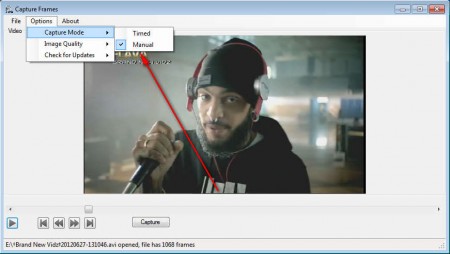
There are also 2 different modes of screen capture available, as you can see from the image above. Currently we have the Manual mode active in which it is necessary to click on the Capture button for the screen grab to be taken, but there is also Automatic capture mode where each frame of the video will be recorded, if you wish, depending on the time that you set:
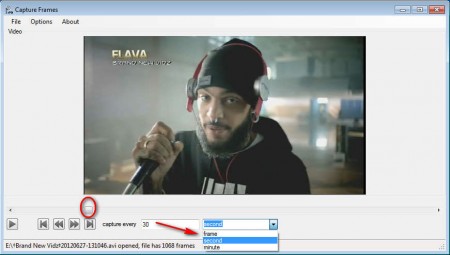
Here we can see from where Capture Frame got its name, by enabling the Automatic mode, see image above, you get the options to create a screenshot every:
- Frame
- Second
- Minute
Use the slider that you can see on the image above to find the place from where you want to start creating the screen caps and then click on the play button on the left. Program will automatically start recording images in the same directory where the video is located. The location where files are saved cannot be changed unfortunately, and you’ll gonna have to look up the images in the folder where the video is located.
Conclusion
Everyone that needs to extract videos frames into images should use Capture Frame. We already mentioned a situation where having a program like Capture Frame comes in handy, the video lecture frame extraction, but you can use it for a lot of different things. For example you can extract frames that you want to use in animations, in other words when you are creating a .gif from a video. Program is not very hard to use, and you should definitely try it out if you’re looking for a free video screenshot utility.
