• Home
  • Software Testing Service
  • About US
    • Privacy Policy
    • Disclosure
  • Write For Us
  • Submit Software
  • Contact Us
    • Subscribe
I Love Free Software
Best free software available all over the web. The free software categories include Windows Software, Social Networking Tools, and software installation videos.


  • Featured
  • Windows
  • Web Applications
  • App Store
  • Android
  • iPhone
  • iPad
  • Windows 8
  • Social Networking
  • Programming Tools

Context Menu Editor: Free Software to Customize Context Menu

By Ishan Bansal on July 27, 2010 | Sponsored Links

Context Menu Editor is a free software that lets you edit the context menus in Windows. This free context menu editor lets you create or delete options from a context menu. You can add or remove web pages, application shortcuts and many other things by using this useful application.

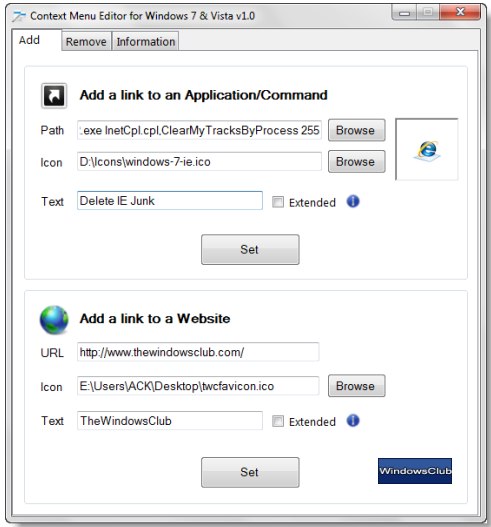
Just open this application, go to its ADD tab and enter the necessary information for adding an application shortcut or a web page link. It can also edit the win32 commands in the context menu.

Context menu is the menu that pops ups when you right click a file, folder or the desktop. Sometimes, the removal of a software does not remove the related options from the context menu and you can easily remove them by using this software. This is created by Windows Club and it is a free software. Another free software from same publishers is Start My Day.

Sponsored Links

Context Menu Editor can be used on Windows 7 and Windows Vista. It is not available for Windows XP, Linux and Mac. You can run it on both type of windows that is, x86 and x64. You will have to start the application in Administrator mode, as its features will not work properly in Limited user accounts. Just log in as administrator and run the Context Menu Editor. It is completely customizable.

You can add web pages, application shortcuts, Win32 commands, files and website urls to your desktop or a folder’s context menu. You can add an application by clicking on ADD tab on the tab bar and filling the information in “Path”, “Icon” and the “Text” fields. After doing this, don’t forget to click the “Set” button to get it done. And the settings would be saved.

Similarly, if you want to add a website link, just fill the Url, Icon and the Text fields and click on the SET button. You can also remove these applications according to your needs and interests. It is very easy to use and with simple features. The best thing is that this application is absolutely free.

If you want to edit other settings of Windows, you can use Glary Utilities, Vista Service Optimizer, and GIGATweaker.

Home Page: Click Here
Works With: Windows
Free / Paid: Free

Link to This Page:


You Might Also Like:

  1. Free Windows Right Click Context Menu Editor: ShellMenu View
  2. Text Editor for Programmers with Syntax Highlighting: Context
  3. Free Software To Modify Right Click Menu
  4. HideDesktopIcons: Free Software to Hide/Unhide Deskstop Icons
  5. Free Favicon/Icon Editor: GreenFish Icon Editor

Be the first to know about Latest Free Software:

  • Join us on Facebook
  • Subscribe to our RSS Feed
  • Follow us on Twitter
  • Subscribe to Email Updates:

Posted in System Utilities | Tagged context menu | Leave a response

Ishan Bansal

« Previous Next »

Featured Posts

  • 5 Free Snippet Managers To Manage Code Snippets
  • 5 Free Online Tools To Test Website In Different Resolutions
  • 5 Free Microsoft Access Alternatives
  • 5 Free IP Notifier Apps
  • 5 Online Mapping Websites
  • 5 Free Alternatives To iGoogle
  • 7 Websites To Download Windows 8 Themes
  • 5 Best Free Calculator Apps For Windows 8

Join More than 15,000 Followers!

Enter your Email Address
  • Submit Software
  • Software Testing Service
  • Write For Us
  • About Us
  • Privacy Policy
  • Disclosure
  • Contact Us

Link to Us:

Did we review your software here? Feel free to flaunt this badge on your website:

Free Software

Use this Code:

Copyright © 2013 I Love Free Software.

Powered by WordPress and Hybrid. New - H