Here are 5 Best Free Disk Space Analyzers. A Disk Space Analyzer analyzes your hard disk to find the largest files and folders. This helps you in quickly analyzing which files or folders are occupying majority of your disk space, and then get rid of them.
Disk Space Analyzers present the disk usage data graphically in a nice way so that you can quickly find files and folders that are largest in size.
Here are some of the best free Disk Space Analyzers.
Update: This list was completely refreshed on 27-June-2014.
JDiskReport by JGoodies
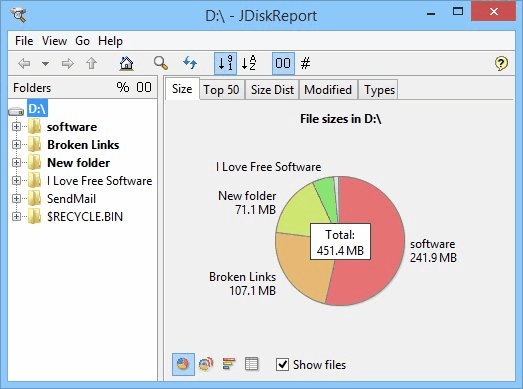
JDiskReport is the best disk space analyzer in this list. It comes with a huge list of features. The best part of this software is that it provides 4 different chart views to analyze the disk space: Pie Chart, Ring Chart, Bar Chart, and details Table. It also shows top 50 files occupying most of the disk space in descending order. Moreover, you can also analyze the disk space in term of the data occupied by different file types, such as: avi, PDF, exe, etc. You can either select the hard drive or just a particular directory for scanning. After that, it will start the scan, and provide you results. Scanning report can also be saved to PC in native format of the software.
It is very lightweight software and set up file size is 700 KB approx. Java must be installed on your PC to run it.
You can read full review here.
SpaceSniffer by Uderzo Software
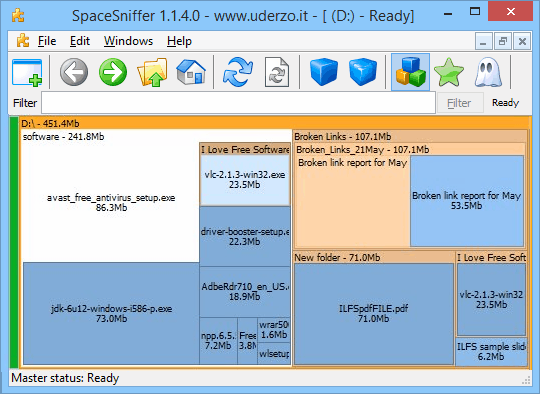
Another handy disk space analyzer available in this list is SpaceSniffer. It is a portable disk space analyzer, only 1.5 MB in size. Unique feature of this software is that it supports multiple scans. That means, you can select different hard drives one by one for scanning. If it is unable to scan some files for some reason (say access is denied), then a real-time log report is also provided by this software. Apart from this, it provides a filter option. Using this option, you will be able to search for only a particular type of file, like *.mp3, *.pdf, etc. This is really a handy feature of this software as you can come to know which file types are occupying more space.
Once the scanning is completed, it shows files/folders name along with size of each individual item on its interface. You can right-click on any file to access context menu options. Context menu options are the same as available in Windows explorer, such as: rename the file, access properties, delete the file, etc. Apart from viewing utilized space, it also shows free space of scanned drive.
You can read full review here.
FolderVisualizer by Abelssoft
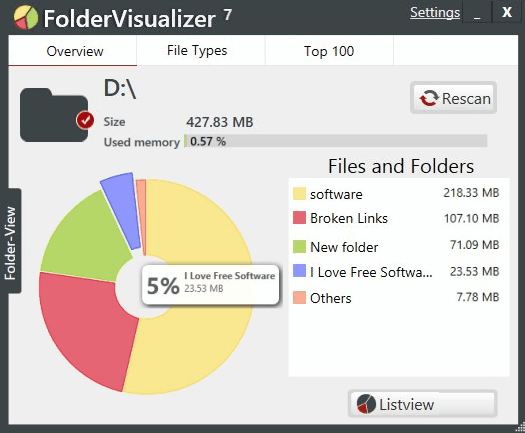
FolderVisualizer is also a handy disk space analyzer that comes with nice interface. It represents the size occupied by different files and folders in two views: graphical view and listview. Graphical view provides a pie chart and lets you see large folders. To find out files present in a large folder, you need to use Folder-View option. List view simply provides a list of all the folders of your hard drive that are occupying more of your disk space.
FolderVisualizer also helps to sort which file types are having most of the disk space. This filter feature is handy to quickly get an idea about storage space used by different file types. You can sort file types by audio files, video files, compressed files, image files, documents, and other file types. Apart from this, it also shows top 100 files in terms of size in decreasing order. Its setup file is only 2.38 MB.
You can read full review here.
Scanner by Steffen Gerlach
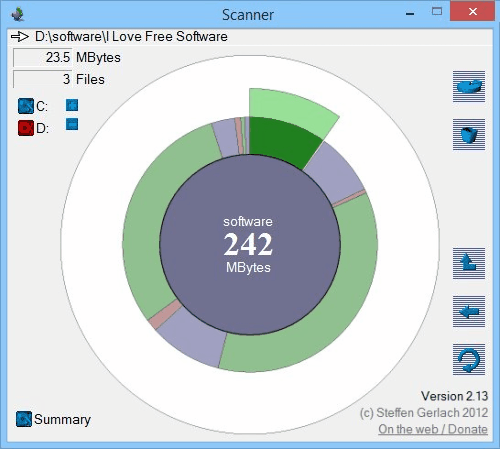
Scanner is the smallest disk space analyzer in this list. It is only 250 KB and portable as well. This disk space analyzer also represents the result in a pie chart, just like above mentioned software. The striking feature of this software is that apart from scanning disk partitions individually, it can scan the whole hard disk. After completing the scanning, it shows you free area and occupied area from all the drives in a single pie chart. If there is any unwanted file that you want to remove, then this can also be done directly from its interface. All you need to do is right-click on a file and use Remove option.
Scanner shows size of a particular file separately in a box. Moreover, multiple files size can also be viewed within the same box by placing the mouse cursor on required area.
Disktective by Freebyte
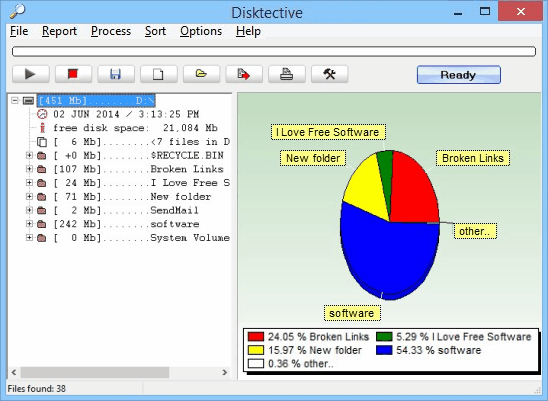
Disktective is the last software in this list which is only 500 KB size. It comes with a very simple interface and provides pie chart view for scanned hard drive. It lets you scan only a particular hard drive or just a single folder. As soon as the scanning is completed, pie chart is presented on right side and files/folders along with their size. Selecting a particular file or folder shows its pie chart view as well. For a complete hard drive, it also shows percentage of folders occupying larger space.
It is also a portable disk space analyzer. You can even generate scan report in its native format. If you want, report can also be exported as HTML file.
Conclusion:
So, these are my best five pick from all the free disk space analyzer software available on Internet. These all disk space analyzers are really good.
