Scratchpad is a Google Chrome extension to take notes when you are offline and sync them when you come online with Google Docs. With Google Chrome extension i.e. Scratchpad you can take notes and save it on Google Docs very easily. Another good thing about The Scratchpad is that, it can also work in offline environment. This is a free, stable and reliable extension with which taking notes has become very easy and simple.
Update: (July 22, 2013) The extension is no longer available in Chrome Web Store. You may check out Note Board, Note Anywhere, Notty Notes.
Add on Chrome:
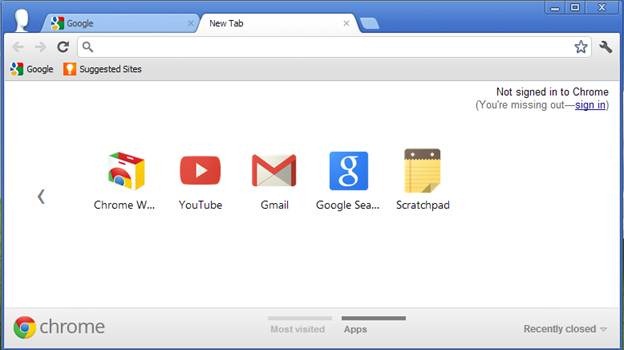
If you already are a Chrome user you need to visit the store to get the Scratchpad extension. In the search box type the name of the extension which in this case is scratchpad. Click on the scratchpad link and on the top you will find “Add to Chrome” control, click on that. It will ask for your permission and download process of the extension will start and will be added to your chrome automatically. Ensure that you have a Google account before doing this, because without this you won’t be able to add the extension to your browser. After adding and clicking on the new tab, you will see something like this:
Start Scratchpad to take notes:
To start Scratchpad click on it (see above snapshot). After clicking on that, you need to grant access, it can access any documents from your hard drive, so click on the Grant access control.
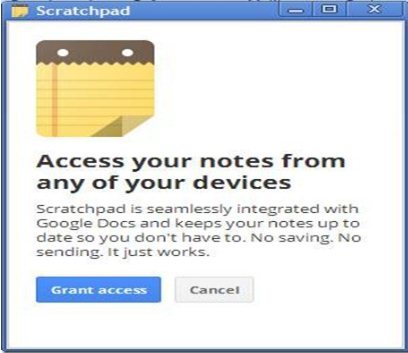
After clicking on Grant access you will see something like this:
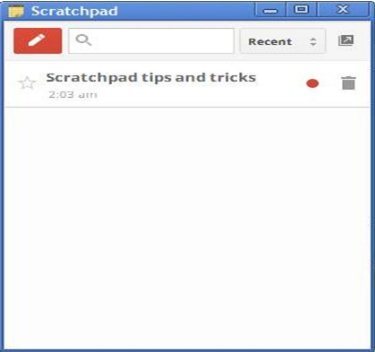
To write a note click on the red control this shows a pencil like icon on it. After clicking on it you will see this:
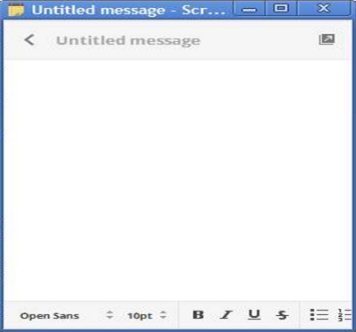
As you can see from the snapshot that it includes all the necessary features a notepad should have and it has been fulfilled by Scratchpad. Feature like Bold, Italic, Underline, Font Size, Bulleting are all provided with it. Formatting the text is as simple as using a standard Windows notepad with which we all are quite familiar.
Since, the notes on the scratchpad are synchronized with Google Docs you don’t need to perform it manually. Google takes the responsibility of synchronizing the notes with Google Docs and happens every few seconds. Documents on the Google Docs are made available on the Scratchpad, so that you can modify as well as use the notes for your purpose.
In case of offline environment, you can save the notes locally and save it on the Google Docs whenever the internet is available. This is one of the most interesting and amazing features, which I like the most.
As I have already mentioned that Scratchpad extension is available for Chrome and is also available for Linux, Windows, and Mac user.
Conclusion:
I personally liked it very much because there are certain times, when there is a need to copy some website address or download links, with Scratchpad the job becomes far more easy and simple. Just use Scratchpad extension once, and believe me you won’t be disappointed at all.
