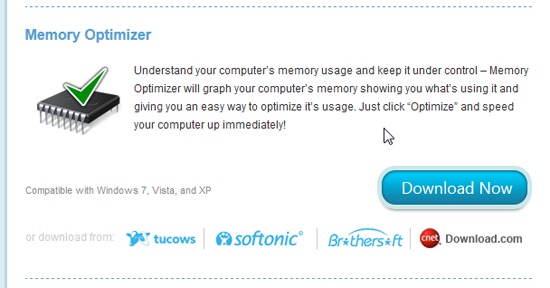
Softorino Memory Optimizer is a free system memory manager software which can optimize and free up system memory. Are you having trouble loading the applications you need to run, but think that you should have plenty of memory to do what you want and need to do? What you need is a small piece of software that manages your system memory and frees up memory that applications no longer need. Memory Optimizer from Softorino is that tool that you’re looking for.
The Differences Between Storage and Physical Memory
Most people I’ve spoken with about computers, storage, and memory over the years are very confused about the difference between computer memory and computer storage. It usually takes two or three explanations for them to understand the differences. The confusion is somewhat easy to understand, though. They’re both measured in megabytes and gigabytes.
Computer storage is where things reside on a permanent basis. It’s the hard drive inside your computer. Just a few years ago, I had an instructor tell me, when we were ordering the computer parts we would use to build our own computers, “Buy the forty megabyte drive, that way you should never need to buy a new one. You won’t be able to fill it.” Nowadays, forty gigabytes is too small to be found anywhere outside of a museum or junk pile. As an example, my laptop has five hundred gigabytes of storage space. When you turn off your computer, everything is stored on the hard drive magnetically for use the next time you boot your computer.
Computer memory is where your programs run. It’s called Random Access Memory, or RAM, for short. The original personal computers only had 640 kilobytes of memory. Now, some have as much as eight gigabytes; mine has three gigabytes. RAM is also known as dynamic memory, because when you turn off the computer, everything is gone, hopefully, important stuff has been saved to the hard drive before you shut the computer off.
Programs Can Be Unruly and Not Play Well Together
If you’ve ever seen the message “Not responding” on the title bar of a running program, you’ve seen evidence of the truism quoted above. Sometimes the memory management system in Windows doesn’t do a very good job of making sure programs don’t try and use the memory space of another program. When this happens you can experience computer freezes and crashes. Microsoft has been promising us for years that their current, then their next, version of Windows will put an end to this problem, but so far they’ve been unable to completely banish freezes.
Enter the Memory Manager and Optimizer
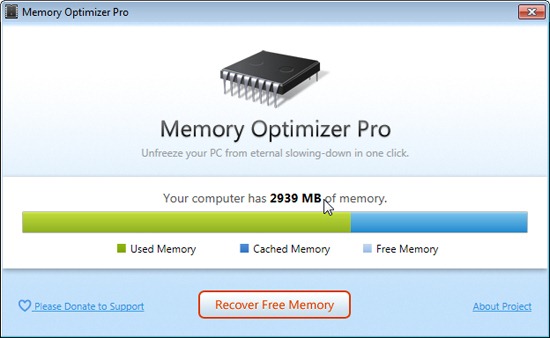
Programs like Softorino’s Memory Optimizer analyze memory usage and free up physical memory by clearing the memory that is listed as used that isn’t currently in actual use. That sounds confusing, I know, but what they do is too technical to get into here. Suffice it to say that what a program such as Memory Optimizer does is take some of the data from open programs and dump it from memory into what’s known as a swap file, which orders the memory in use and frees up physical memory.
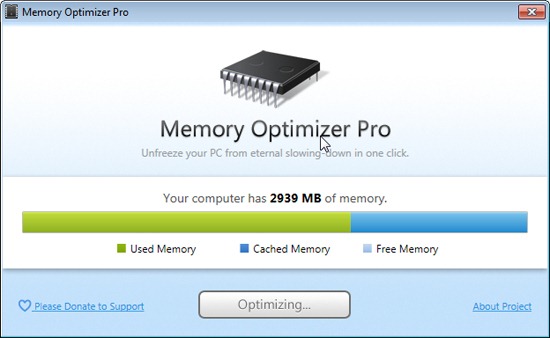
Memory Optimizer does this pretty well. As I was testing it, I had a number of programs open, large programs. I had Firefox, with four tabs, Photoshop, with ten good-sized images, my mail program, a Word document, and Windows Explorer. I had less than a full gigabyte of memory free. It took a second or two to switch between open programs.
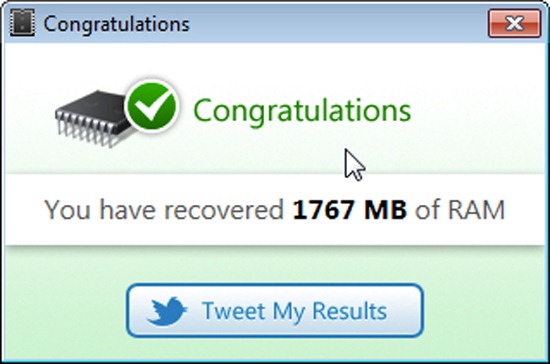
I then launched Memory Optimizer and told it to optimize my memory, or ‘Recover Free Memory.’ It took about two minutes to analyze my system status and optimize my memory. When it was finished, it had free up, as can be seen in the above screenshot, 1767 megabytes of memory. And my programs switched instantaneously. I’d say it worked pretty well.
