• Home
  • Software Testing Service
  • About US
    • Privacy Policy
    • Disclosure
  • Write For Us
  • Submit Software
  • Contact Us
    • Subscribe
I Love Free Software
Best free software available all over the web. The free software categories include Windows Software, Social Networking Tools, and software installation videos.


  • Featured
  • Windows
  • Web Applications
  • App Store
  • Android
  • iPhone
  • iPad
  • Windows 8
  • Social Networking
  • Programming Tools

How to Enable Priority Inbox in Gmail

By Deepika Arora on November 30, 2011 | Sponsored Links

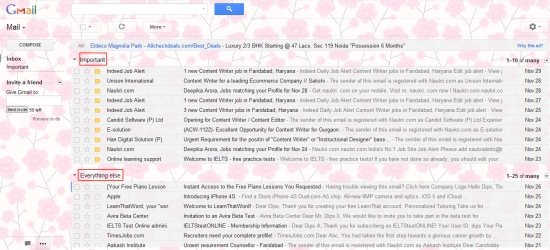
Google Priority Inbox is a new feature which automatically identifies all important incoming messages and separates them out from bulk messages. Enabling Priority Inbox will add a yellow Flag like icon which will be an indicator to your important emails.
gmail2
Sponsored Links

Priority Inbox helps you save time if you are overwhelmed with the amount of email messages you receive. In addition, by mistake if an important email is marked as unimportant, or an unimportant mail is marked as important by Priority Inbox, then you can mark those emails accordingly. This will let Priority Inbox know of your selections and help improve the performance of Priority Inbox. Just mark your important and unimportant mails. That’s it.

When you mark something as unimportant, than Priority Inbox will move that email out of important section. Overtime Priority Inbox will understand what matters to you and what doesn’t and will start making intelligent decisions on its own.

How to Enable Priority Inbox:

  • Sign in to your Gmail account
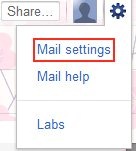
  • Click on “Mail Settings” given under the “Gear Icon” on Gmail homepage at right hand side corner of the page.
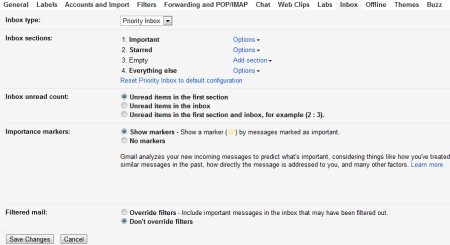
  • gmailIn the navigation Tab, Click on “Inbox” Tab
  • Select “Priority Inbox” as Inbox Type
gmail1

  • Customize settings as per your requirements.
  • Once you are satisfied with settings, Click on “Save Changes”

You can also try out adding signatures in Gmail reviewed by us or Mingly to access your social networks from Gmail.

Yup…there you are.. your Gmail inbox now will look different with important and unimportant mails categorized into different panes. All important messages will have yellow Flag. Go ahead and give it a try…!

Home Page: Click Here
Free / Paid: Free

Link to This Page:


You Might Also Like:

  1. How to Enable Smart Labels in Gmail
  2. Add Notes To Mails In Your Gmail Inbox: Notes for Gmail
  3. How To Enable Google Voice Player In Gmail
  4. ActiveInbox: Free Plug-in to Organize Emails in Gmail
  5. Enable Multiple Inboxes In Gmail

Be the first to know about Latest Free Software:

  • Join us on Facebook
  • Subscribe to our RSS Feed
  • Follow us on Twitter
  • Subscribe to Email Updates:

Posted in Email Clients, Internet Tools | Tagged gmail, gmail account, gmail inbox | Leave a response

Deepika Arora

« Previous Next »

Featured Posts

  • 5 Free Snippet Managers To Manage Code Snippets
  • 5 Free Online Tools To Test Website In Different Resolutions
  • 5 Free Microsoft Access Alternatives
  • 5 Free IP Notifier Apps
  • 5 Online Mapping Websites
  • 5 Free Alternatives To iGoogle
  • 7 Websites To Download Windows 8 Themes
  • 5 Best Free Calculator Apps For Windows 8

Join More than 15,000 Followers!

Enter your Email Address
  • Submit Software
  • Software Testing Service
  • Write For Us
  • About Us
  • Privacy Policy
  • Disclosure
  • Contact Us

Link to Us:

Did we review your software here? Feel free to flaunt this badge on your website:

Free Software

Use this Code:

Copyright © 2013 I Love Free Software.

Powered by WordPress and Hybrid. New - H