Phonedeck is a free Android app to control or manage contacts and messages through Chrome browser. This Android management app makes it easy for you to manage messages and contacts with one click through your Google Chrome browser on computer. You just need to connect with a unique email as your username and get started to manage your contacts and messages.
Update: (July 16, 2013) Phonedeck was earlier accessible via a Chrome extension on PC. Now it can be accessed via a cloud-based account. So you can simply go to Phonedeck website and sign in with your credentials to manage your mobile phone contacts. The extension part no longer exists.
Before getting started, you need to sign-up with Phonedeck to create your unique username and password. Now login with Phonedeck credential on Phonedeck Chrome extension and Phonedeck Android app.
Somewhat similar apps we covered earlier include Drop2Mobile app to send links to Phone from browser, and , MightyText app to manages messages and contacts from Chrome browser on PC.
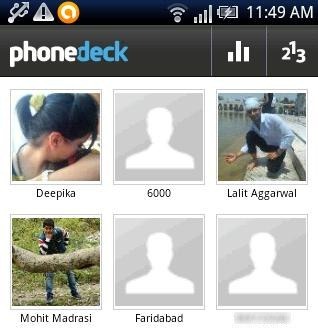
With Phonedeck app, you can access your phone data on Google Chrome browser. You can check all your received and sent SMS from each number saved on your contact list. Compose a new message and send it through the number running on your Android to anyone, be it a contact from your phonebook or any unknown number. Apart from this, Phonedeck Chrome extension also displays number of incoming, outgoing, and missed calls on different dates of the month. The activities performed on each contact through your Android is displayed by Phonedeck browser client.
Coming on to contacts part, the app is too great to manage contacts of your Android phone. You can easily access all the contacts with their name, contact number, and the contact picture saved. Moreover, the browser client also allows you to edit contacts, add a new contact, merge contacts, and delete a contact. All these can be easily done wirelessly on a Wi-Fi network. Now lets see how to get connected and use Phonedeck Android app and browser client.
How To Use Phonedeck:
Step 1: Download and install Phonedeck browser extension on your Google Chrome browser. If you are unable to install Phonedeck Chrome extension from Phonedeck webpage, then click here to install it from Chrome Web Store.
Step 2: Download and install Phonedeck app on your Android phone from our App Store or scan the QR Code below. You can also head to Google Play Store on your Android phone and then search for the app and install it.

Step 3: Now connect your PC and Android phone on same Wi-Fi network.
Step 4: Sign-up with Phonedeck and login with your credentials on Android app and Chrome extension installed.
Step 5: Now launch the Android app to make your Android device visible on Chrome browser. Also, launch the Chrome extension to make sure that you are logged in to your Phonedeck.
Step 6: You can now see name of your Android phone connected with the browser after logging on Phonedeck webpage with your username and password.
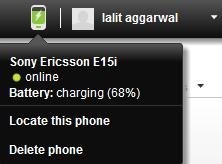
Step 7: Click on the appropriate options to manage your contacts and messages of your Android from Chrome browser.
Features Of Phonedeck App To Manage Contacts & Messages Of Android:
- Access your messages and contacts on Chrome browser.
- Access call logs which include incoming calls, outgoing calls, and missed calls according to specific dates of the month.

- You can send messages and make outgoing calls.
- Displays the list of contacts with the contact’s name, contact number, and contact picture.
- Edit a contact, add a contact, or merge a contact on Android from browser.
- Check insights on each contact saved in your phonebook.
- Send invitation to friend on Phonedeck.
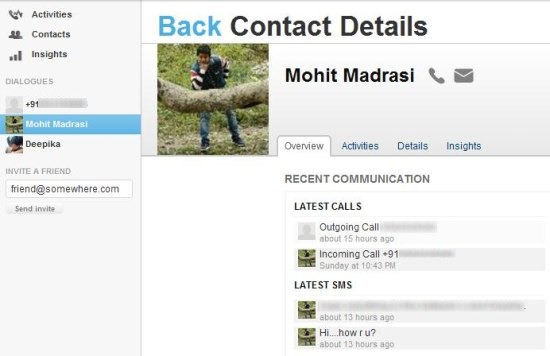
Phonedeck makes it easy for you to browse contacts and messages without touching the Android device. Make use of your Wi-Fi network and make your work easier and faster by controlling phone through PC. Phonedeck has a small limitation that it works a bit slow. You have to wait a bit to check for activities, messages, call logs, and contacts.
Phonedeck is another way apart from Drop2Mobile app, MightyText app to manages messages and contacts from Chrome browser installed on computer.
