Lucidity is an interesting little application that you can use to achieve desktop transparency under Windows OS. The application is very small and simple to use, and it will really do as advertised, make your entire desktop transparent:
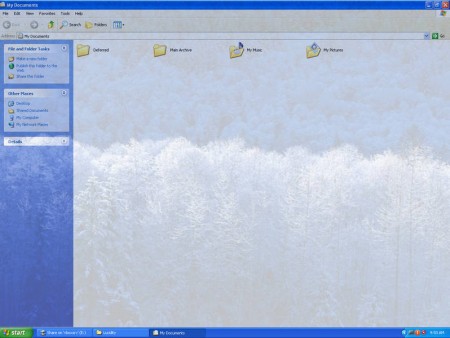
Once that the transparency is in effect, the entire desktop even the icons are transparent. The only thing that is not transparent would be the task bar at the bottom of the screen, you can see on the image above that there’s no transparency on the task bar. Everything that is on the task bar is also not transparent, so the Start Menu doesn’t have transparency, quick launch and tray pop-ups are not transparent.
How to achieve window transparency with Lucidity?
Program works on its own and you don’t have to install it. Just run the .exe file and you will receive something like this:
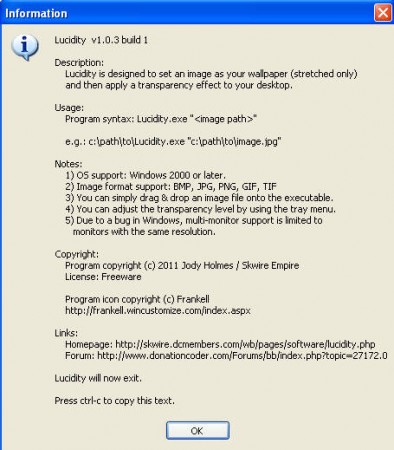
You will now see that the basic instructions of how you can use the program, something similar can be found in the readme file. Here you can find out that the easiest way of how you can activate Lucidity in order for it to actually apply transparency to windows, and that is by selecting an image and dropping in on the Lucidity’s .exe file. Lucidity has to change the background as well, probably because that’s how the overall transparency is achieved, by emulating the background image inside the window.
What to expect after transparency is applied?
When you drag and drop image on the Lucidity .exe, don’t be surprised by the fact that your entire desktop disappears, that’s what happened to us. The reason why this is happening is because the program comes preset with 100% transparency which means that everything is there, only it’s hidden. Luckily since the task bar is visible, and with it the system tray as well you can right-click on the Lucidity tray icon to open up the transparency settings:
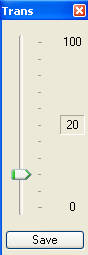
Transparency effect can also be turned off by right clicking on the tray icon and selecting the Toggle Effect option.
How to make windows desktop transparent all the time?
To do this you’re gonna have to set Lucidity to run when the computer starts. Create a shortcut of Lucidity and copy it to C:\Documents and Settings\User\Start Menu\Programs\Startup or if you are on Windows Vista or 7 place the shortcut in C:\ProgramData\Microsoft\Windows\Start Menu\Programs\Startup, note that this will make Lucidity run for all the computer users. Without this option set program will not run automatically and you will not have transparency.
Conclusion
Even though transparency which Lucidity offers isn’t as good as transparency that Linux operating systems can have, it’s more than enough to add a little bit of zest and kick to your Windows system. Program is very small and light on the resource so it shouldn’t cause you to lose performance, at least not too much. Make sure that you first place the wallpaper with Lucidity by dragging and dropping it on the .exe file, that way it get’s activated and you should be able to see your windows desktop transparent.
