• Home
  • Software Testing Service
  • About US
    • Privacy Policy
    • Disclosure
  • Write For Us
  • Submit Software
  • Contact Us
    • Subscribe
I Love Free Software
Best free software available all over the web. The free software categories include Windows Software, Social Networking Tools, and software installation videos.


  • Featured
  • Windows
  • Web Applications
  • App Store
  • Android
  • iPhone
  • iPad
  • Windows 8
  • Social Networking
  • Programming Tools

How To Create Custom Theme In Gmail

By Lalit Aggarwal on June 21, 2012 | Sponsored Links

Here, are few easy steps to create custom theme in Gmail. I have been waiting for this option to become available in Gmail, for so long now. Gmail has awesome theme options with multiple beautiful and HD themes in its database. You can select from any of them and make your Gmail background look great. Along with multiple themes, Gmail also provides the option to select any custom image and make it as your Gmail background in the form of theme.

You can select from light and dark theme type. After selecting the theme type, you can select any image from your computer hard drive, Google+ account, photos from phone, paste a URL, or select the recently selected image. Custom Themes option of Gmail is very smart and works great.

You can even check the short tutorial on how to change Gmail background reviewed by us.

Steps To Create Custom Theme In Gmail:

Step 1: Login to your Gmail account.

Step 2: Now, you will see a “settings” button on the top right of your main Gmail home page. Click on the settings button.

Gmail Settings button
Sponsored Links

Step 3: In the drop down list, you will find “Themes” option. Click on the “Themes” option in the drop down list.
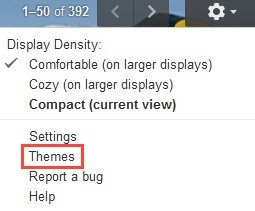
Gmail Themes Settings

Step 4: Scroll down in the themes settings menu and there you will see theme type with the name called “Custom Themes”. Click on “Custom Themes” of your choice which includes light and dark.
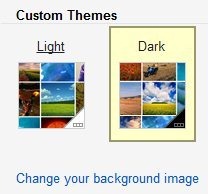
Custom Themes Gmail

Step 5: Now, click on “change your background image” option  to select custom image for your Gmail background.
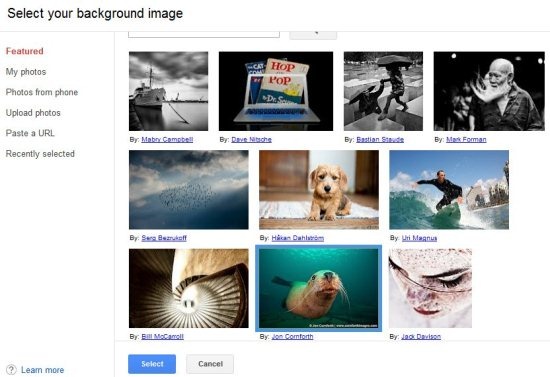
Custom Themes Gmail Selection

Step 6: Select your custom image and you are done. You will find the selected image at the background of your Gmail account.
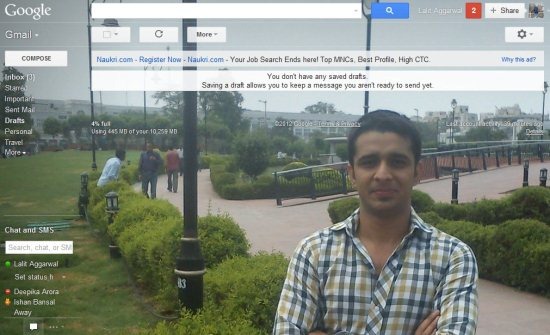
Custom Image Gmail

If you are using Google Chrome as your web browser, then don’t forget to take a look on a short tutorial which includes steps to change theme of Google Chrome browser.

Let’s Review the tutorial through a small video:

YouTube Preview Image
Works With: Gmail
Free / Paid: Free

Link to This Page:


You Might Also Like:

  1. How to Change Gmail Background
  2. Theme Creator To Create Chrome Themes
  3. Create Chrome Themes For Free Using My Chrome Theme
  4. How To Change Keyboard Shortcuts In Gmail
  5. Chrome Theme Maker: Create Theme for Google Chrome

Be the first to know about Latest Free Software:

  • Join us on Facebook
  • Subscribe to our RSS Feed
  • Follow us on Twitter
  • Subscribe to Email Updates:

Posted in Internet Tools | Tagged gmail | Leave a response

Lalit Aggarwal

« Previous Next »

Featured Posts

  • 5 Free Snippet Managers To Manage Code Snippets
  • 5 Free Online Tools To Test Website In Different Resolutions
  • 5 Free Microsoft Access Alternatives
  • 5 Free IP Notifier Apps
  • 5 Online Mapping Websites
  • 5 Free Alternatives To iGoogle
  • 7 Websites To Download Windows 8 Themes
  • 5 Best Free Calculator Apps For Windows 8

Join More than 15,000 Followers!

Enter your Email Address
  • Submit Software
  • Software Testing Service
  • Write For Us
  • About Us
  • Privacy Policy
  • Disclosure
  • Contact Us

Link to Us:

Did we review your software here? Feel free to flaunt this badge on your website:

Free Software

Use this Code:

Copyright © 2013 I Love Free Software.

Powered by WordPress and Hybrid. New - H