Note: Crap Cleaner no longer exists in 2022. Use CCleaner instead.
Crap Cleaner is yet another software that you can use in order to optimize your Windows PC. When you visit the homepage of EvonSoft, creators of Crap Cleaner you’ll notice that there are two different free versions available for download, but the second option for free download is not Crap Cleaner, in fact it’s not even software made by EvonSoft, so be careful what you download.
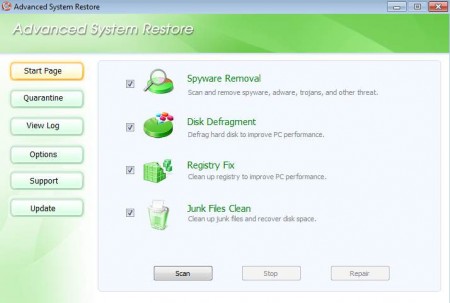
What you see above is the default window of Crap Cleaner, as you may have noticed, the program name is Advanced System Restore, some might think that something is wrong, this isn’t Crap Cleaner, but this is the real deal, I checked it twice. Perhaps the author wanted to avoid the word “crap” in the program name, since it’s not a nice word to hear in front of children ;), that’s why we have Advanced System Restore.
Spyware scanning and removal with this system optimizer
I don’t know how much point there is using Crap Cleaner’s Spyware Removal tool and ultimately relying on it, because program updates are not available in the free version. If you click on Update button on the left side, the program homepage will open and you will be presented with the list of features that the free version has. Then notice that only users with paid versions can update the program and with it the spyware database. The one that comes with the program is probably not updated, newer version of malware might slip under the radar. You can still use it, just don’t trust the scans completely.
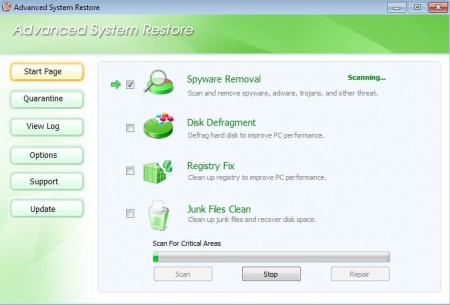
How good is the disk defragmentation feature?
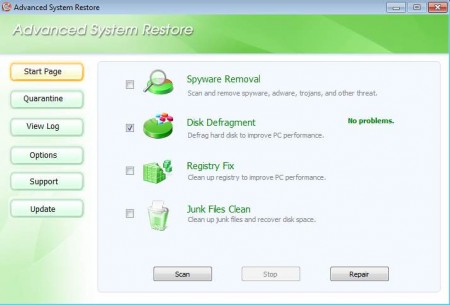
After initially trying to scan for fragmentation errors I discovered that there are no errors on my hard drive:
Which is weird because the installation is older and there should be errors, so I looked into it and in options it was set that program ignores errors until defragmentation reaches 5%:
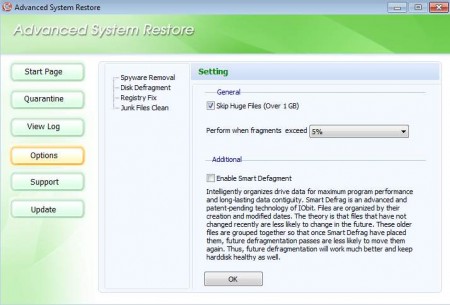
Change this to Always Defrag and remove the check box next to Skip Huge Files. After that program finds defrag errors and it’s pretty good, except there’s no advanced overview of what’s going on when the defragmentation is happening.
Fixing registry errors with Crap Cleaner
During the registry scan, problems were found immediately:
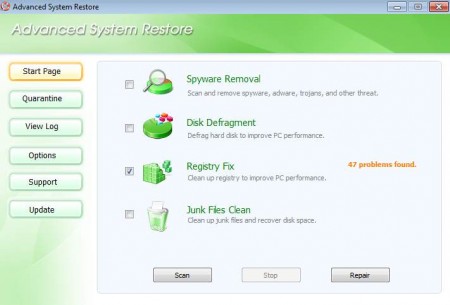
Just like with defragmentation, when I selected the Repair button, progress bar at the bottom filled, but there were no log reports about what exactly was deleted. Hiding information from users is never a good thing, perhaps this will change in the future versions of the program.
Junk files removal
After clicking on Scan, in the junk file removal portion of the program you will be informed about how much file space junk files are taking up on your hard drive:
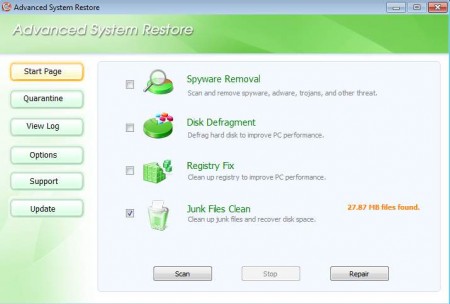
And after clicking on the Repair button you will not get much more info, just like with the rest of the scanners. The program doesn’t seem to have very advanced reports, which is not a good thing. There is an option View Logs, but surprisingly it didn’t work. Make sure that you check the Option before starting scans, adjust everything according to your taste. Taking the log report issue aside, Crap Cleaner is very good, very lightweight and easy to use, give it a try if other similar PC optimizers have failed you.
