DuckCapture is a free screen capture software. DuckCapture allows you to capture a window on your screen, a section of your screen and even a whole webpage that scrolls. DuckCapture also allows you to edit images by adding annotations, informative text or change the captured area.
Features of this screen capture software:
- Simple and easy to use interface.
- Editing tools which allows you to select different areas of the image, move and add annotations.
- Share pictures in one click by uploading them on min.com or share them via email or post them on your blog.
- Draw annotations and other basic shapes on captured images.
How to use it
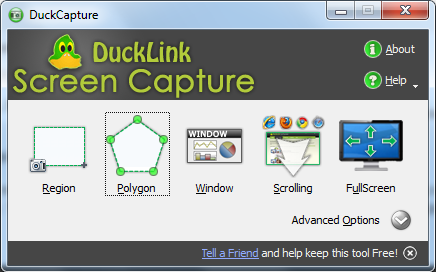
Installation went on with no issues. The interface is simple and very well-arranged. Icons are well labelled and all have tooltips. The program starts up with windows and minimises to tray.
To capture images, double-click on the tray icon. The Region button captures a small region of the screen while the polygon capture allows you to plot a polygon with your mouse and capture the area enclosed by the polygon. The window option locates open windows and highlights them ready for capture. The scrolling option is particularly useful for capturing webpages which scroll down over several pages. The full screen option captures the whole screen. On selecting the region option the program opens a new interface which allows you to add more captures areas, draw annotations, save and print or cancel and discard changes.
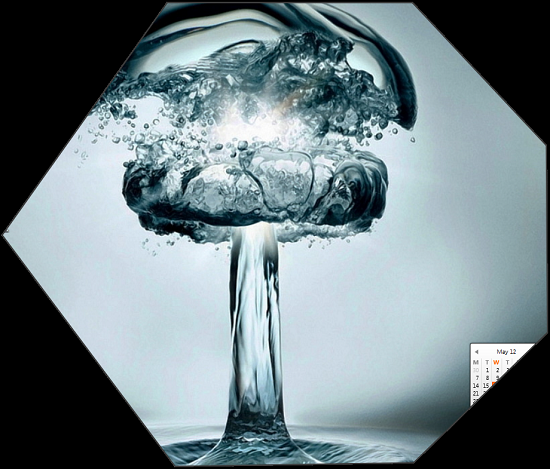
To capture a polygon, you need to plot several points on the interface. After completing the polygon, right-click to stop plotting and capture the section you selected. Once you have captured an image you have the option of adding more capture areas, drawing annotations, saving the image, printing and even placing the image on the system clipboard for later use.
To capture windows, click on the Window button. The program minimises and immediately begins to search for open windows. Use your mouse to toggle between windows until you finally have the window you want to capture. Again, you have the same options of saving, discarding, printing, adding annotations or adding more images. The full screen capture allows users to capture the whole screen instantaneously. This however has three options, saving to clipboard, saving to file or cancelling and discarding changes.
Program settings can be accessed by clicking on the Advanced Options button. On the General tab, you can choose various window options. You can set a default destination folder and file types for images captured on the Output File tab. The Keyboard tab allows you to enable hot keys for Region, Window, Scrolling and Full Screen capture modes. Help can be accessed by visiting the products homepage, writing an email to the developers or by registering any bugs or issues on Fogbugz.com.
Opinion
The program is very light and very easy to use. The scroll feature is a great addition and literally sets it apart from the competition. Keyboard shortcuts make it easy and fast to navigate through the program.
Verdict
DuckCapture is a simple but perfect screen capture utility.
