Screen Capture + Print is a free portable screenshot utility for Windows. Unique thing about it is that after a screencap is created you’re gonna be offered with three options of how you want to output the image. One of those options is to directly print it using your printer, which basically means that you can literally print your desktop using Screen Capture + Print.
The other two options are the standard clipboard output, this is where screenshot goes when you press the Print Screen button, and another one that allows you to save the created screen cap as an image.

Similar software: Hardcopy, Windows Screen Capture, Grabilla.
Right click on the system tray icon is the only thing that might be called the main menu when it comes to this free screenshot software. Menu that pops-up holds options for again three different types of screenshots that can be created and next to that, you only get links for about, help, donations, and so on, but nothing similar to a menu.
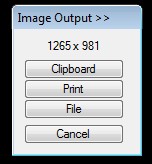
This is the output dialog, it’s what appears when you create a screenshot. We mentioned that one of the options of what can be done with the screen grab is Print. The other two are the standard clipboard output, this is where screenshot goes when you press the Print Screen button, and another one that allows you to save the created screen cap as an image. Key features of Screen Capture + Print are:
- Free with a very simple to use and understand interface – right click
- Portable – doesn’t require any kind of installation – click and run
- Create fullscreen, windows or specific screen region screenshot
- Allows you to either directly print the screenshot, save it to the clipboard or to save it as an actual image – JPG, GIF, PNG, BMP, TIF
How to create and immediately print screenshots with Screen Capture + Print
Pretty much everything that you need to do can be seen from the two screenshots above. After you run this free screenshot utility, it’s gonna start minimized to system tray, so don’t click on the executable again thinking that it’s not working. First thing that you need to do is right click on the system tray icon and select between the three screenshot types that are available, fullscreen, windows or rectangular screen section.
Once that you have selected that, the small window which can be seen on the second image above will come up. From it you’ll be able to either select to save the image to clipboard, so that it can be pasted to Paint for example, to save it as an image or most importantly to print the screenshot directly using your printer. And to make things clear, yes we are here talking about printing screenshot directly to paper, using an actual printer. Select whatever it is that you want to do and that’s it.
Conclusion
Screen Capture + Print is very practical and easy to use. It’s portable so you can try it out without installing. If you need to automatically print screenshots to paper, then this is the tool for you. Lightweight, simple, fast but it still at the same time has a lot to offer and even if you don’t need to print screen grabs, if you just need to save them to a file or clipboard, you can still benefit a lot using this free screenshot utility. Free download.
