Update 2022: This software no longer exists. Try some other alternative now.
ScreenShot is a free utility program you can use to capture screenshots more easily. The application also lets you manipulate the screenshots using annotation tools like pens and arrows circles. The application runs on all windows operating systems after Windows XP and requires .NET Framework 4.0 to run.
Features
- Manipulate screenshots using a variety of tools.
- When you capture screenshots you can upload screenshots to FTP sites.
How to Capture Screenshots?
Installation was totally uneventful. The program does not resemble typical user interfaces, rather, it runs as a tray icon but keeps listening for the system print screen command.
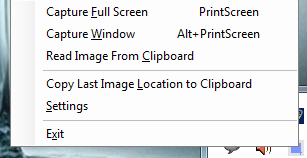
ScreenShot allows users to capture screenshots of the whole desktop or from particular open windows. To capture a screenshot of the whole desktop, use the system print screen key or select Capture Screenshot from the context menu of the tray icon. The annotate window appears. You can choose different annotation tools ranging from lines to shapes like triangles and circles. To capture screenshots of specific windows, select Capture Window from the tray icon context menu or use the Alt+Print Screen hotkeys. When capturing a window, you need to select the window by focusing your mouse on a particular window until it is fully enclosed in a red rectangle. Click anywhere inside the box to crop out the area outside the rectangle.
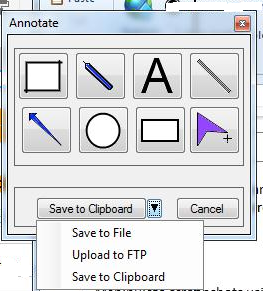
Click on the dropdown to access file manipulation options or Cancel to discard the screenshot. Click Save to file to save the screenshot to your hard drive or Save to clipboard to place it on the system clipboard for transfer or pasting to other applications. If you fancy saving the screenshot as an image on a FTPs server, click Upload to FTP you need to have configured the FTP server. If you haven’t, navigate to settings on the tray icon context menu. Enter a valid server address and port. Username and password should be entered if the server requires authentication. Else check the Anonymous login checkbox to login to server without a username and password. Enter a folder or location on the server where the images are to be stored in the Default Images Location. Use the Test Settings button to check whether the application is able to successfully login to the server.

Pros
- Easy and simple configuration
- Superb annotation tools
Cons
- Bugs are evident when capturing a window
Conclusion
ScreenShot uses quite a different approach on how screenshot should be taken and manipulated. Am sure you will learn to embrace the superb features and ignore the few bugs you may come across.
