NoMachine is free desktop virtualization software which companies can use in order to create virtual operating systems specially dedicated to work, which the employees can then access from their workstations. Main advantage of using the NoMachine virtual OS software is the ease of use when it comes to configuring everything that needs to be configured and also the fact that NoMachine is cross platform, it works on Windows, Linux, Solaris, Mac and others.
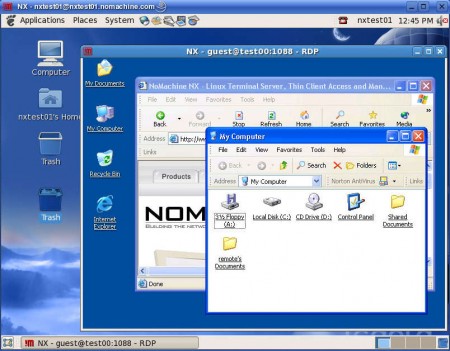
NoMachine comes in two parts, what you see above is the Client application which is installed on the terminals, computers that you will use to connect to the server. Server will be running the Server application, which requires a little bit more configuring to work. You can have several different systems on the server, and users from the terminals simply connect to them via the Clients to use whatever tools that are installed on the OS which is being accessed.
Similar software: Desktop Now, Ammyy Admin.
Configuring NoMachine Client for virtual OS access
Technically speaking what NoMachine does isn’t virtualization, because the systems which are accessed on the server are not virtual. These systems are actually installed and configured there, and we use the NoMachine Client in order to connect to them and use them, but before a access is possible you will have to create the connection:
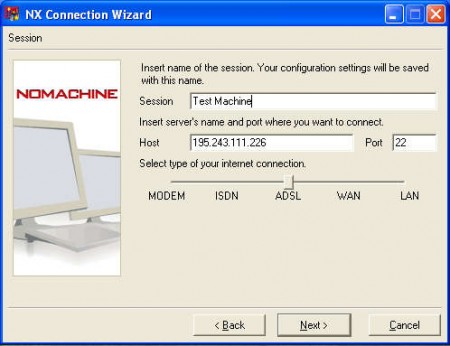
Don’t worry there’s a wizard that can be used to add a connection to the server, on the NoMachines website there is information about a test server who’s info can be used for testing. Setup step that can be seen on the image above would be the most important where the server IP address and port is entered. Clicking on Next will bring you to a window where you can select what kind of system it is that you’re connecting and even a different desktop enviorment be accessed.
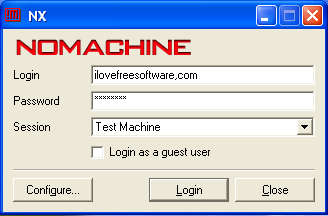
After everything is done and configured the image that you see above is what you should see and it’s where you can start the connection to the operating system installed on the server. Doing that will bring you to the image that you can see above, where an operating system is running from within a window, that’s where the virtualization part comes from. The system which are being accessed can either run in fullscreen or you can have them running in a window, which makes it easier to interact with the host system if it’s necessary to do so.
Conclusion about this Desktop Virtualization Software
Once that you are inside a system, it should look like the first image from the top. Great thing about NoMachine is the wide range of operating systems where it can be installed, so all those work teams that have mixed computers, Macs and PCs can easily connect to the NoMachine server and work on the program and applications installed in the OS running on the server. NoMachine is free, and you can install it on as many computers that you want, try it and see if it can maybe help you decrease costs a bit by having a Linux workstations and only a Windows server for example, pay only 1 Windows license, free to try.
