Here is a small tutorial that explains how to change Start Menu Picture in Windows 7. Those of you who might be using a Windows 7 computer, knows that Windows 7 offers to associate a picture with every user account you make on your computer. You can see this picture on your Windows logon screen, on top right corner of the Start menu, or wherever your user name appears. Not only you can associate a picture with your user account, but also change it. Changing this picture is a fun thing to do. You can choose a picture from Windows default options or browse for any other picture on your computer. You can even associate your own photo with your account if you want.
How to change Start Menu Picture in Windows 7:
Step 1: Open the Start Menu.
Step 2: Click on the existing picture that is being displayed in Start Menu. If no picture is being displayed, it will still show a blank rectangular section, and you can click on that.
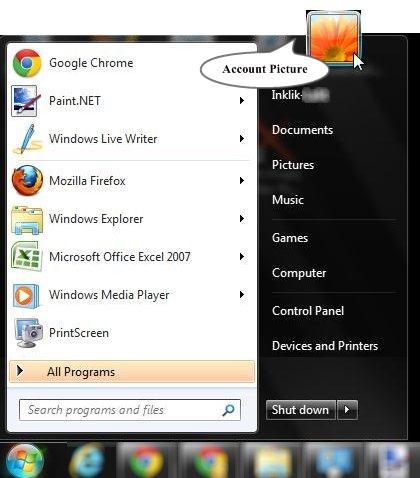
Step 3: This will get you to “User Accounts” section. In this, click on the option “Change your Picture”.
Step 4: In this window, you can select any picture that is being displayed, or click on “Browse for More Pictures” to select any other picture from your hard drive (including your own picture).
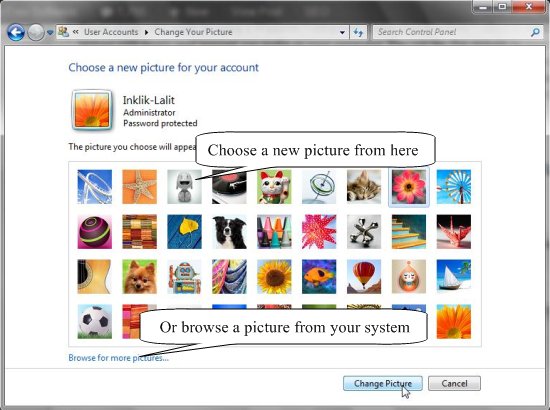
Step 5: Finally click on the “Open” button if you browse a picture from your system, or click on the “Change Picture” button if you select a picture from the displayed ones. The selected picture will be set as your new user account picture.
That’s it!
So, you see how easy it is to change start menu picture in Windows 7. The picture that you select will be displayed as your new account picture and you can see it anywhere your user name appears. For a quick check, you can click on the start button and see the new picture present on the top right corner, above your user name. If you choose your own picture, that will be displayed as your user account picture and you can see it on screens or menus that display your user name.
Don’t forget to read about how to Bring Windows 8 metro Desktop on Windows 7.
Note: You can use pictures of any size, but the picture file format should be .jpg, .png, .bmp, or .gif only.
If you are looking for some more customization options for Windows 7, you can check our reviews on How to change Login screen of Windows .
Also read about how to disable Aero in Windows 7.
