Here is a tutorial that explains how to Use Dropbox on Android.
Dropbox is a free Android App for sharing files and folders between computer and other devices. You can use this with Dropbox that you might have installed on your computer, and then share files between Android phone and your computer.

Dropbox not only synchronizes documents between computer, but also it allows access to files through your Android, iPhone or iPad too.
You can also check details on Dropbox for desktop reviewed by us.
Lets take a look on the steps of “How To Use Dropbox On Android”?
How to Install Dropbox on Android
Step 1: Open your Dropbox right from the main menu. If you don’t have the Dropbox installed, then install it by following the below steps:
-
Just login to “Android Market”.
-
Click on “Search” Tab. Type “Dropbox” in search Tab.
-
Click on “Dropbox”.
-
Click on “Install”.
-
The free Dropbox app for Android will be automatically installed. Just click to open the app, when installed.
- Here is the direct link for Dropbox app on Android market.
Step 2: It will prompt you to login to the Dropbox account. Existing users don’t need to sign up with Dropbox account. New user can click on “I’m new to Dropbox”and fill the mandatory details to create the account.
How to Use Dropbox on Android
Step 1: After getting logged in, you will see all your Dropbox contents.
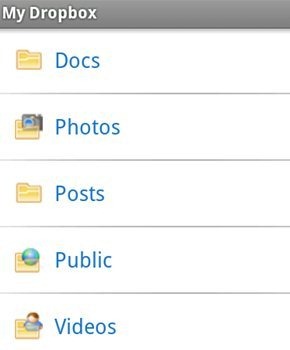
Step 2: Open any folder, file, photo, video, etc. If you want to upload any new file from your SD card then for that you’ll need some file manager app installed in your Android device. Two popular free file manager apps are: OI File Manager and Astro File Manager.
Step 3: Share any of your Dropbox documents by email, Facebook, Twitter by the Dropbox app installed on your phone. Long press on the preferred file you want to share. From the multiple options, select “Share” and then click on “Share a link” and then the desired option.
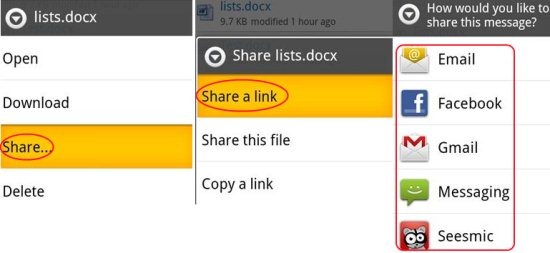
Step 4: The recipient can view the file to whom you sent the link.
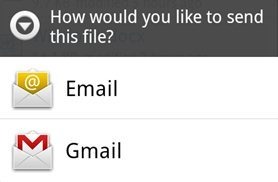
Step 5: Now if you don’t want to share the link and share the whole file, then click on “share this file” option.

Step 6: Click on the desired option that is Email or Gmail, through which you want to share the file.
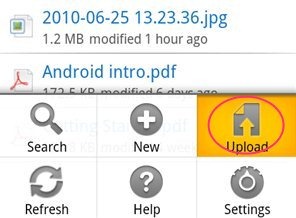
Step 7: Upload any file or folder from your Android device to Dropbox. Just press the menu button, tap on “Upload” option.
‘
Step 8: Select your preferred file or folder as it will give you a pop up to select the type of file you want to upload whether it’s an audio file, Video, picture or any other file.
Step 9: Select the file type, you want to select and then you’ll see a notification that your file is uploading. After uploading, you can access the uploaded file from any Android device or any other device which have Dropbox installed.
Step 10: You can even create a new document, folder, file, take a photo, or add a video and save it in an easy way without closing the app. Just press the Menu button from your smart phone and select “New” option.
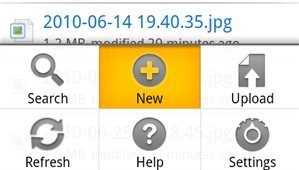
Step 11: Then it will give you a pop up to select the desired document you’d like to create. It doesn’t make any difference whether it’s a picture, video, audio or any text file. You can select the desired option from the list and create a new file or document.
Step 12: Click on OK and your document will be automatically uploaded to your Dropbox.
Step 13: Also search any file of your choice which you are unable to locate. From the Menu option, tap on “Search” option.
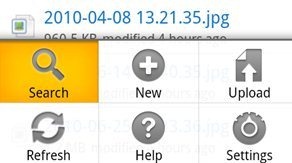
Step 14: Type the file name which you want to search and find the result.
These above were the steps of “How to Use Dropbox on Android”’. By this I am sure that you must have understood the whole process. Just install the Dropbox on your desktop and your smart phone and make your work easier and faster.