Show My Screen is a portable remote screen capture utility which can you can use in order to share with other people what you see on your desktop or for other people to share with you what they see on their desktop over the internet or a local network. This is only for remote desktop viewing, it’s not a full-fledged remote utility which allows interaction, but even without this, there are a lot of uses for Show My Screen, tech support for example.
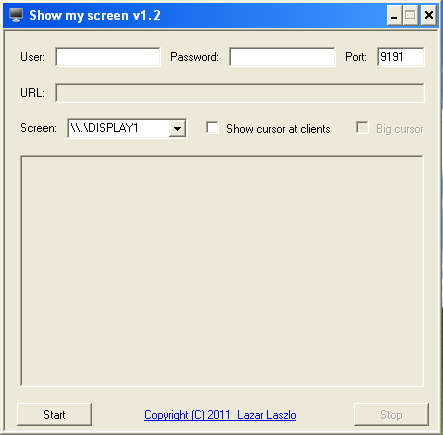
Interface is very easy to follow, it’s not necessary to go through a lot of setup in order for Show My Screen to start working, and best of all the application is portable, there’s no need for installation in order to use this free remote screen capture tool, just extract it, run the program and start configuring the connection options, which is what you can see on the image above.
Similar software: Lite Manager Free, Desktop Now, Ammy Admin.
How does free remote screen capture with Show My Screen work?
First of all, we should clarify what exactly Show My Screen does, this is not a remote control utility, we mentioned several times that Show My Screen is only a remote screen capture program, which means that you can only connect to a live feed of the computer screen where Show My Screen is installed, configured and running. There’s no need for a client application, remote screen can be viewed from the browser.
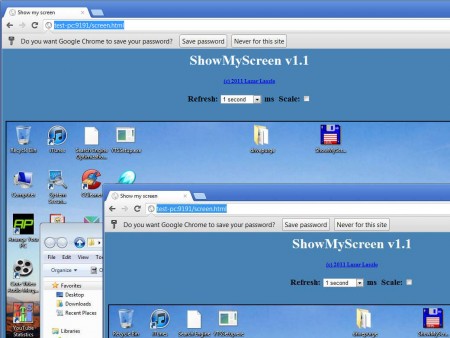
What you can see in the image above would be the Show My Screen remote capture in progress inside a Google Chrome tab. The URL which you have to open up inside Google Chrome will be given to you after you’ve successfully configured everything that needs to be configured in the Show My Screen main application shown in the first image above.
Show My Screen configuration – free remote screen capture
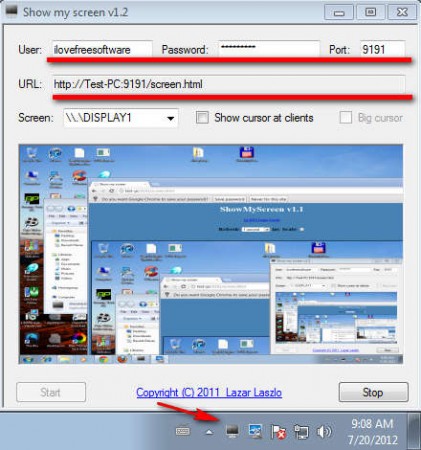
The first step in configuring Show My Screen would be to enter the password and username which will grant the other person access to your computer screen. These login credentials will need to be entered when you type in the URL which can be seen in the second line on the image above. This address is what you have to visit with your browser in order to access the screen of the remote desktop.
At the bottom of the Show My Screen window you can see Start and Stop button. The URL field will be empty until you click on the Start button. Show My Desktop server will then start working, the Preview screen should start showing you the image of your desktop and once you visit the URL that was generated by the application, you should see the same thing.
Tech support can use Show My Screen to actually show customers how something is done, without needing to install anything or any kind of special setting up. Just share the URL to whoever it is that you’re trying to help, give them your username and password, after which they can just connect to your computer where you can show them what exactly it is that they need to do. Great tool.
