• Home
  • Software Testing Service
  • About US
    • Privacy Policy
    • Disclosure
  • Write For Us
  • Submit Software
  • Contact Us
    • Subscribe
I Love Free Software
Best free software available all over the web. The free software categories include Windows Software, Social Networking Tools, and software installation videos.


  • Featured
  • Windows
  • Web Applications
  • App Store
  • Android
  • iPhone
  • iPad
  • Windows 8
  • Social Networking
  • Programming Tools

How To Remotely Control PC From Android

By Lalit Aggarwal on February 27, 2012 | Sponsored Links

Here, are steps to remotely control PC from Android. If you are working with a team and not all your team people are located in the same location. Then this app will come in handy. Say you are training your team and for certain things you need to log in with your ID and password. But of course you can not share your password with your entire team. Now your team is not being able to access that all important file or document which they need to see for the training.

In these types of situation, this app is the right one to opt for as you will then be able to control the PC of your team members remotely and can easily log in with your ID and password right from your Android phone. Android phone is the best device to manage situations of these type. Below are the steps to remotely control PC from your Android phone.
Remote Control Android
Sponsored Links

Steps To Remotely Control PC From Android:

Step 1: Login to Android Market.

Step 2: Search for “TeamViewer For Remote Control” app in Android Market.
TeamViewer App

Step 3: Install “TeamViewer For Remote Control” app on your Android.

Step 4: Install windows version of “TeamViewer” app on your PC.

TeamViewer App Download

Step 5: Launch the app both on Android as well as on your PC.

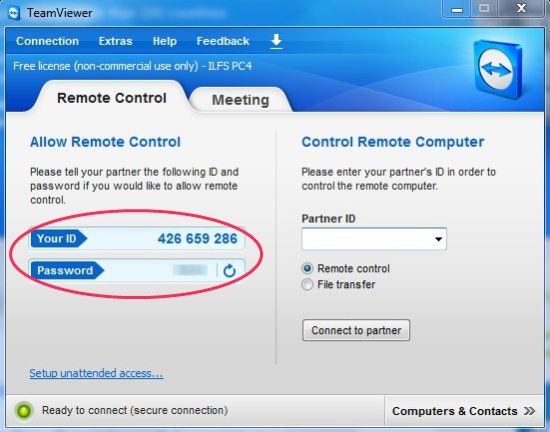
Step 6: As soon as you launch the app on your PC, the app will generate a TeamViewer username and password.
TeamViewer App Username and Password

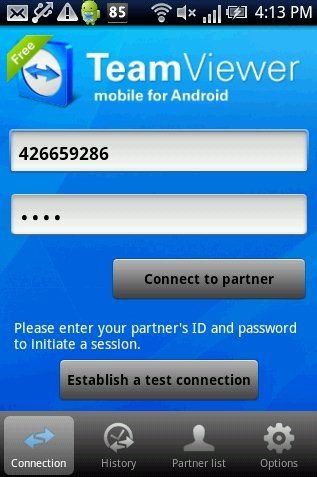
Step 7: Enter the username and password in TeamViewer app on your Android.
TeamViewer Android

Step 8: Tap on “Connect to partner” option on your Android.

Step 9: As soon as you tap on “Connect to partner” option from your Android, a connection will be established.

Step 10: Now you can see your current computer screen and mouse point on your Android screen. Just scroll the mouse point from your Android and remotely control your PC from Android.
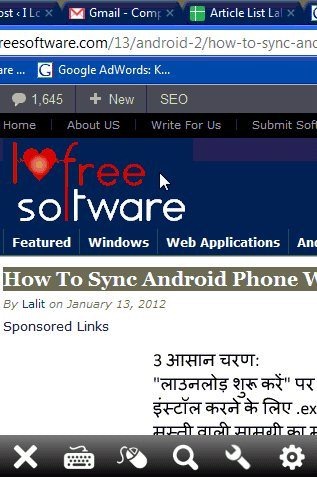
TeamViewer Remote Access

You can check out how to turn your Android phone into a computer mouse reviewed by us.

This Team Viewer app is a good way to remotely control PC from your Android phone easily.

Home Page: Click Here
Works With: Android 1.6 and up
Free / Paid: Free

Link to This Page:


You Might Also Like:

  1. How To Use Android Phone As PC Monitor
  2. How To Control Windows Media Player, iTunes With Android
  3. How To Use Android Phone As PC Keyboard
  4. How To Use Android Phone As PC Mouse
  5. How To Use Android Phone As a Mouse And Remote

Be the first to know about Latest Free Software:

  • Join us on Facebook
  • Subscribe to our RSS Feed
  • Follow us on Twitter
  • Subscribe to Email Updates:

Posted in Android | Tagged android | Leave a response

Lalit Aggarwal

« Previous Next »

Featured Posts

  • 5 Free Snippet Managers To Manage Code Snippets
  • 5 Free Online Tools To Test Website In Different Resolutions
  • 5 Free Microsoft Access Alternatives
  • 5 Free IP Notifier Apps
  • 5 Online Mapping Websites
  • 5 Free Alternatives To iGoogle
  • 7 Websites To Download Windows 8 Themes
  • 5 Best Free Calculator Apps For Windows 8

Join More than 15,000 Followers!

Enter your Email Address
  • Submit Software
  • Software Testing Service
  • Write For Us
  • About Us
  • Privacy Policy
  • Disclosure
  • Contact Us

Link to Us:

Did we review your software here? Feel free to flaunt this badge on your website:

Free Software

Use this Code:

Copyright © 2013 I Love Free Software.

Powered by WordPress and Hybrid. New - H