Right Click Menu Creator is a free software to add custom menu to Right click option. You can add one or more menu items to your Right click menu, and create cascading Right click menu. This Right Click Menu Creator is completely free.
Note: This Right click menu editor works with Windows 7 only.
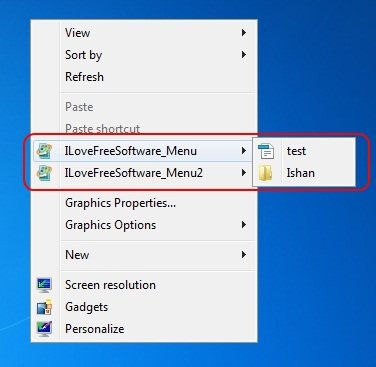
You can see the sample Right click menu that I created in screenshot below:
How to Create Right Click Menu with Right Click Menu Creator:
- Go to Rbsoft website, and download Right Click Context Menu Creator. The download file size is less than 1 MB, so it should be a quick download.
- Double click on the exe file to run it, and install it.
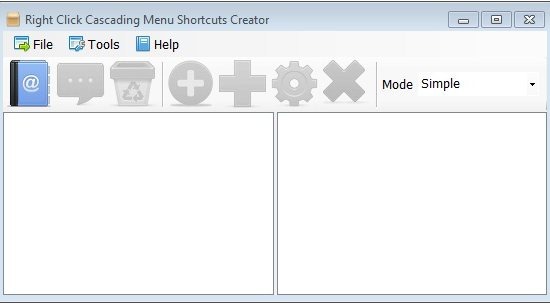
- Once installed, start the program. The program window will come as below:

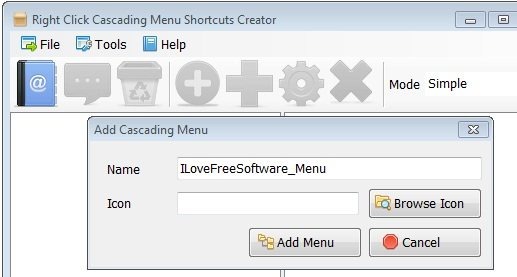
- To add your first menu item, just click on the notebook icon with “@” on it, and provide name of the menu. You can also specify a custom icon to go with it.

- Then, you can add files or folders in this menu by using “+” buttons available on the toolbar (one of them is for file, and another for folder). If you want to add any program to Right click menu, you need to choose the option to add file, and then provide path of the executable file of that program.
- You can add as many items under your menu. You can even add multiple menu.
- There is no option to save; this right click menu creator keep automatically saving the options as you create them.
- To see your menu, just Right click anywhere on the desktop on blank space. You’ll be able to see your new menu.
As you can see, it is quite easy to create custom Right click menu. You can delete the menu anytime by just running the program, and selecting the menu that you want to delete.
Some other similar software we reviewed earlier include Right Click Enhancer, and Context Menu Editor.
Here is a video that shows how to create custom Right Click menu:
http://www.youtube.com/watch?v=pIwWmQtC_foSo check out this Right Click menu creator at Rbsoft Website if you want to add some custom menu to Right click option. You’ll love it.