I have reviewed some file encryption programs earlier (most noteworthy being DiskCryptor) that can efficiently encrypt your files. However, when I came across Conceal, I was really surprised by the simplicity of this nice program. Conceal has made it so simple that anyone can use it, without getting confused. The interface is very simplisting and intuitive, and all the options are clearly stated and well explained. If you are a home user, this is the freeware I would recommed to encrypt and password protect your files.
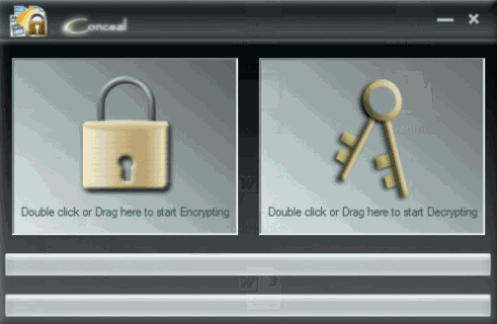
When you start Conceal, it comes up with a simple window that has just 2 options: Encrypt file, and Decrypt file.
Encrypt and Password Protect File:
To encrypt a file, just drag and drop the file to Encryption section. Conceal will prompt you to specify a password for the encrypted file. This ensures that anyone who want to decrypt that file needs to know that password. If you have too many files, and want to create separate encryption passwords, you can use the nice feature of password list that I will explain a bit later.
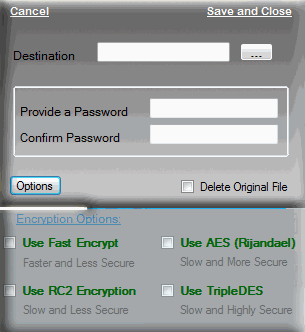
Once you have specified a password, you can specify the type of encryption algorithm that you want to chose. You can pick one that is fast and less secure, or one that is slow but very secure. Conceal can also delete the original file for you once it has created an encrypted copy of that.
Decrypt a file:
If you want to read an encrypted file, you need to decrypt it first. To decrypt a file, just drag and drop it on the decryption section of the Conceal window. Conceal will ask you for the password that you had used to decrypt the file. Only after specifying the correct password, Conceal will decrypt the file for you.
Password File:
As I mentioned earlier, you might be trying to encrypt a large number of files, and might want to specify a different password for each file. It becomes very difficult to remember so many passwords. Conceal provides an easy option for that. While encrypting, you can choose to create a password file. Conceal will store the password information in that file. That password file can be located on your hard disk, or USB drive. Conceal encrypts the password file as well, so that no one can read that. While decrypting, you can just specify the location of that password file to Conceal, and Conceal will read the password from there. This would mean that you no longer need to remember all those passwords.
Conceal is really good for Home and personal use. It works efficiently, is easy to use, and provides good encryption options. If you need to secure files on your home PC, then this is the software I would recommend you start with.