• Home
  • Software Testing Service
  • About US
    • Privacy Policy
    • Disclosure
  • Write For Us
  • Submit Software
  • Contact Us
    • Subscribe
I Love Free Software
Best free software available all over the web. The free software categories include Windows Software, Social Networking Tools, and software installation videos.


  • Featured
  • Windows
  • Web Applications
  • App Store
  • Android
  • iPhone
  • iPad
  • Windows 8
  • Social Networking
  • Programming Tools

How To Find Android Version Of Phone

By Lalit Aggarwal on April 24, 2012 | Sponsored Links

Here, are few steps to find current Android version on phone. The working of your Android phone totally depends on the current Android version installed on your phone. The higher the version, the more updated your phone will be.

Also, searching and installing apps on Android depends on the current Android version installed on your phone. All the apps In Google Play Market are separated by their Android version support. There are multiple apps which support Android version 1.6 and up, 2.1 and up, 2.2 and up, 2.3.0 and up, 4.0 and up and the like.

So if you want to install any app on your Android phone, you need to know the Android version of your phone and the Android version supported by the app. For having information about Android version on your phone, you need to follow some basic steps below.

Steps To Find Android Version Of Phone:

For Sony Ericsson And Samsung Android Phone:

Step 1: Tap on the home settings menu on your Android phone.

Step 2: Tap on “About phone” option in the settings menu.
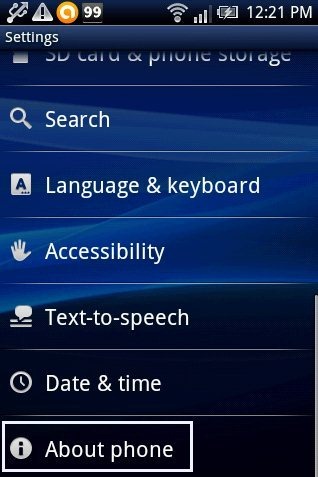
About Phone
Sponsored Links

Step 3: Now look for firmware version on your Android phone.

Step 4: You will see the current Android version of your phone.
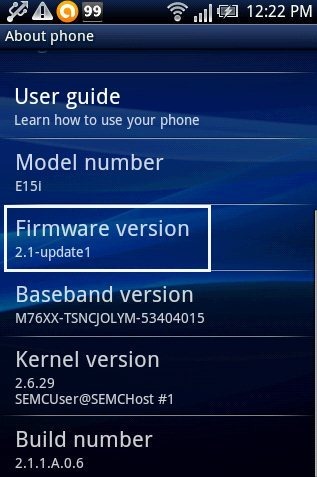
FirmWare Version

For HTC Android Phone:

Step 1: Tap on the settings menu on your HTC Android phone.

Step 2: Tap on “About Phone” option in the settings menu.

Step 3: Tap on “Software information” option in settings menu.
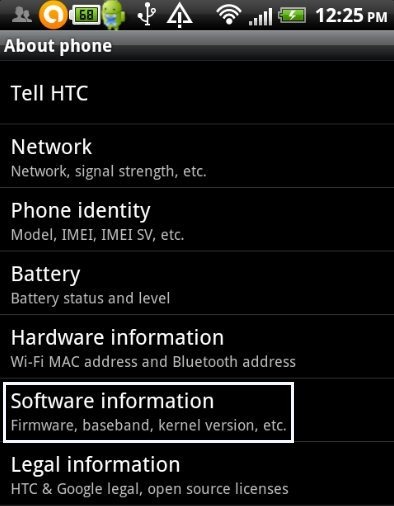
Software Information

Step 4: Tap on “Android Version” option in software information menu.
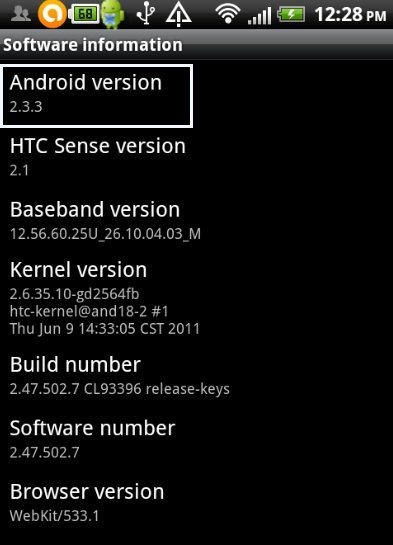
Android Version

Step 5: Now you will see Android version displayed on your Android screen.

Now you can manage the apps and other features according to the app version of your Android phone. Also, you can update your Android version if you find any updates available. Just know your operating system and manage it easily on your phone.

Also, check out how to install non-market apps on Android reviewed by us.

Link to This Page:


You Might Also Like:

  1. How To Keep Screen ON Of Android Phone
  2. How To Sync Android Phone With PC Over Wi-Fi
  3. How To Manage Android Phone From PC
  4. How Find Installed Apps From Google Play Store On Android
  5. How To Install Non-Market Apps On Android

Be the first to know about Latest Free Software:

  • Join us on Facebook
  • Subscribe to our RSS Feed
  • Follow us on Twitter
  • Subscribe to Email Updates:

Posted in Android | Tagged android | Leave a response

Lalit Aggarwal

« Previous Next »

Featured Posts

  • 5 Free Snippet Managers To Manage Code Snippets
  • 5 Free Online Tools To Test Website In Different Resolutions
  • 5 Free Microsoft Access Alternatives
  • 5 Free IP Notifier Apps
  • 5 Online Mapping Websites
  • 5 Free Alternatives To iGoogle
  • 7 Websites To Download Windows 8 Themes
  • 5 Best Free Calculator Apps For Windows 8

Join More than 15,000 Followers!

Enter your Email Address
  • Submit Software
  • Software Testing Service
  • Write For Us
  • About Us
  • Privacy Policy
  • Disclosure
  • Contact Us

Link to Us:

Did we review your software here? Feel free to flaunt this badge on your website:

Free Software

Use this Code:

Copyright © 2013 I Love Free Software.

Powered by WordPress and Hybrid. New - H