• Home
  • Software Testing Service
  • About US
    • Privacy Policy
    • Disclosure
  • Write For Us
  • Submit Software
  • Contact Us
    • Subscribe
I Love Free Software
Best free software available all over the web. The free software categories include Windows Software, Social Networking Tools, and software installation videos.


  • Featured
  • Windows
  • Web Applications
  • App Store
  • Android
  • iPhone
  • iPad
  • Windows 8
  • Social Networking
  • Programming Tools

How To Change Apps Icon On Android Home Screen

By Lalit Aggarwal on April 22, 2012 | Sponsored Links

Here, are quick steps to change apps icons on Android home screen. After a long time of usage of your Android phone by you, it is a possibility that sometimes you get bored with the app default icons on your Android phone.

You want to have a change on your Android phone, so that it looks different and more beautiful. Beauty of your Android home screen depends on the apps icon and shortcut created on your Android home screen. It is my one of the favorite task to change apps icon on Android phone as I like change very much. If you are interested in changing the app icons, then follow the below mentioned steps to change apps icon on Android.

Steps To Change Apps Icon On Android Home Screen:

Step 1: Login or sign-in to Google Play Store on your Android phone.

Step 2: If you have a Barcode Scanner app, then you can scan the QR Code below to download “Icon Changer” app on your Android phone.

Icon Changer QR Code
Sponsored Links

Step 3: In case you don’t have a Barcode Scanner app, then search for “Icon Changer” in Google Play Store on your Android phone.

Step 4: Install “Icon Changer” app on your Android phone.

Icon Changer

Step 5: Then search for “Icon Package For Icon Changer” app on your Android phone.

Step 6: Install “Icon Package For Icon Changer” app on your Android phone.

Step 7: Launch “Icon Changer” app on your Android phone.

Step 8: The app will import all your installed Android apps automatically.
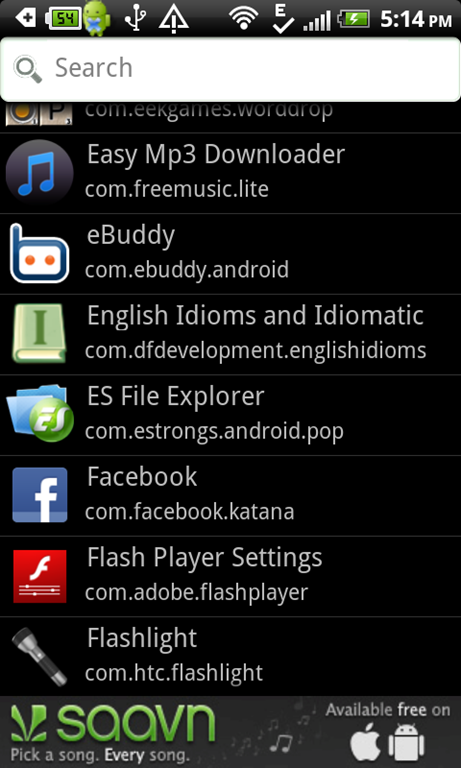
Icon Changer

Step 9: Tap on an app for which you want to change the icon.

Step 10: Then tap on “change icon” option to change the app icon on your Android.

Step 11: You can select the platform from which you want to choose the app icon. You can choose any platform which includes gallery, icon pack, ADW icon pack, Go Launcher theme.
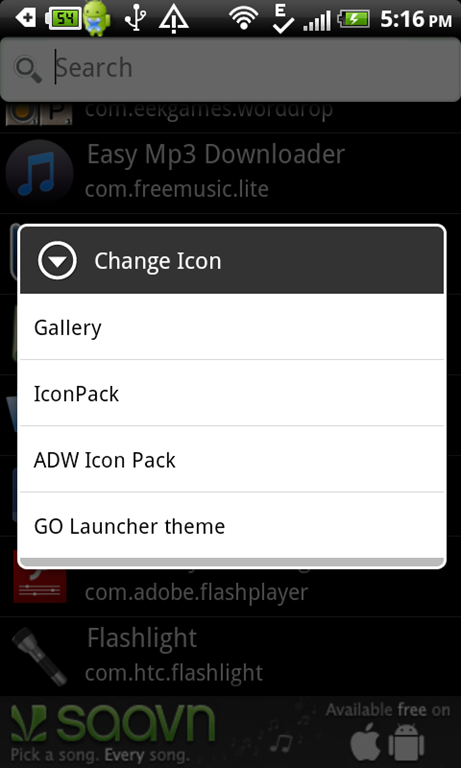
Change Icon

Step 12: Select Icon Pack (recommended).

Step 13: Select the icon from the list of icons.
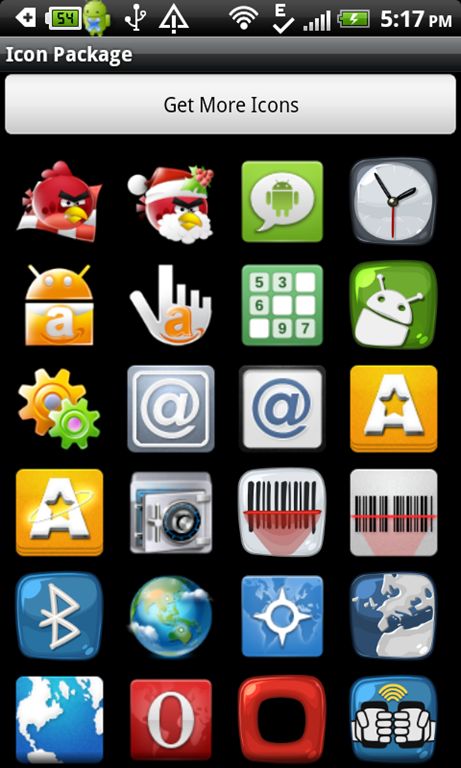
Icon List

Step 14: Now you will see a shortcut icon on your Android screen of the app with the changed app icon.
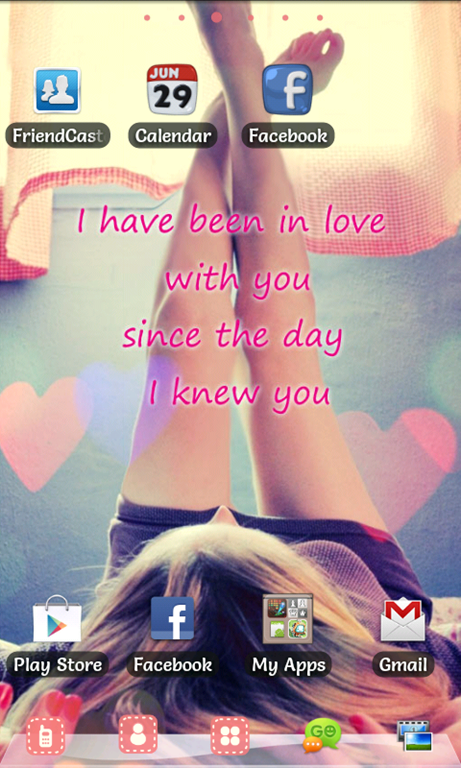
Android Screen Changed Icon

So customize your Android home screen by customizing app icons on your Android. Just experience all new change on your Android phone or device. Also, check out how to change font style on Android reviewed by us.

Home Page: Click Here
Works With: Android 2.1 and up
Free / Paid: Free

Link to This Page:


You Might Also Like:

  1. How To Add GPS Shortcut Icon On Android Home Screen
  2. How To Resize App Icons On Android Home Screen
  3. How To Access Favorite Android Apps Directly From Home Screen
  4. How To Add Sticky Notes On Android Home Screen
  5. How To Remove App Labels On Android Home Screen

Be the first to know about Latest Free Software:

  • Join us on Facebook
  • Subscribe to our RSS Feed
  • Follow us on Twitter
  • Subscribe to Email Updates:

Posted in Android | Tagged android | Leave a response

Lalit Aggarwal

« Previous Next »

Featured Posts

  • Top 7 Free Launchers for Android
  • 5 Free Snippet Managers To Manage Code Snippets
  • 5 Free Online Tools To Test Website In Different Resolutions
  • 5 Free Microsoft Access Alternatives
  • 5 Free IP Notifier Apps
  • 5 Online Mapping Websites
  • 5 Free Alternatives To iGoogle
  • 7 Websites To Download Windows 8 Themes

Join More than 15,000 Followers!

Enter your Email Address
  • Submit Software
  • Software Testing Service
  • Write For Us
  • About Us
  • Privacy Policy
  • Disclosure
  • Contact Us

Link to Us:

Did we review your software here? Feel free to flaunt this badge on your website:

Free Software

Use this Code:

Copyright © 2013 I Love Free Software.

Powered by WordPress and Hybrid. New - H