Here, is quick tutorial to make calls and send SMS wirelessly from iPhone using PC. You can now connect your iPhone wirelessly to PC and then send messages and make calls using PC, and they will be routed via your iPhone..
To perform this task, we will be using SMS PC HappyFingers app on iPhone as well as on PC. Making calls and sending SMS from PC keeps you away from slow typing on that tiny iPhone keyboard. Just type with your PC keyboard and make your work faster along with managing calls and SMS on your iPhone.
Note: The free version of the app allows you to make calls and send free SMS to only any four selected numbers. If you want unlimited access, then you need to purchase the donate version of the app.
Steps To Make Calls And Send SMS Wirelessly Through iPhone Using PC:
Step 1: Download and install “SMS PC HappyFingers” app on your iPhone.

Step 2: Also, Install Windows client of SMS PC HappyFingers app on your Windows PC.
Step 3: Connect your iPhone and Windows PC on same Wi-Fi network.
Step 4: Now launch the app on both iPhone and your Windows PC.
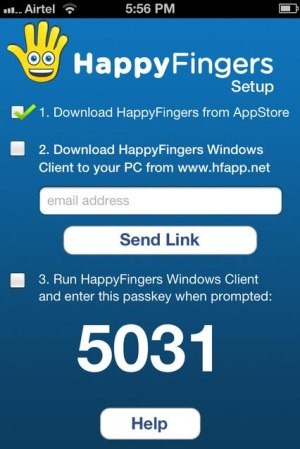
Step 5: Enter the passkey provided by the iPhone app in Windows client of the app.
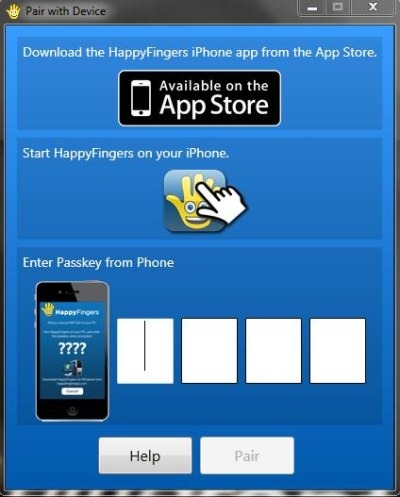
Step 6: Now, tap on “pair” button to pair both the devices (iPhone and PC) and get connected.
Step 7: You will now see a toolbar which gives you the access to make calls and send SMS through iPhone using PC. (Remember to import all the contacts of your iPhone to your PC in-order to make calls and send SMS through iPhone on any selected number.

Step 8: Open the contact list Imported and start making calls and sending SMS through iPhone using your PC.

Apart from making calls and sending SMS, you can also send emails using your PC mail.
SMS PC HappyFingers app works perfectly with good connection strength. The app even allows you to connect two or more devices. All the paired connections are displayed in the settings menu of the app. You can easily click on any one to get connected.
SMS PC HappyFingers is quite an interesting app, and practically useful too. However, limitation of being able to call only four numbers kinda spoils the fun.
If you are an Android user, you can check out PhoneDeck for Android to control Android phone from PC.
