Here, is a step by step tutorial to add contacts to favorites on Android phone. Android provides an interesting feature of “Favorites” in which you can add any of your contacts. Then you can access those contacts easily, without a need to go through your complete address book. However, Android doesn’t makes it very simple to add any contact to Favorite. So, I thought I would write a post that explains how can you use the “Favorite” feature of Android, and add contacts to favorites on Android.
Steps To Add Contacts To favorites On Android Phone:
Step 1: Login to Google Play Store on your Android phone.
Step 2: Install Go Launcher EX app from Google Play Store on your Android phone.

Step 3: Apply Go Launcher EX app on your Android phone.
Step 4: Install Go Contacts app from Google Play Store on your Android phone.

Step 5: Launch the app on your Android phone to make some changes.
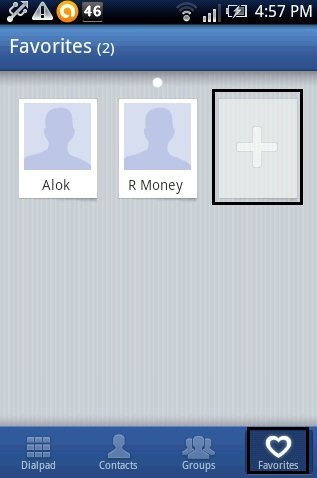
Step 6: Tap on the “favorites” tab in Go Contacts app.
Step 7: You will see an “add” button with favorites tab of Go Contacts app. Tap on the add button to add contacts to favorites.
Step 8: Select your favorite contacts which you use the most and then tap on “ok” button.
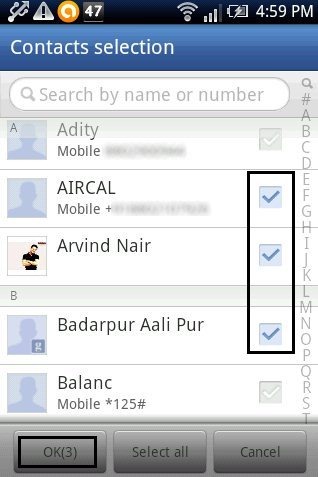
Step 9: Now you can see all you favorite contacts together in the app on your Android phone.
Step 10: Long press on your Android screen to add “Go Contacts” shortcut on your Android home screen.
Step 11: Tap on “Go Contacts” icon on your Android home screen and tap on favorites to access all your favorite contacts all together.

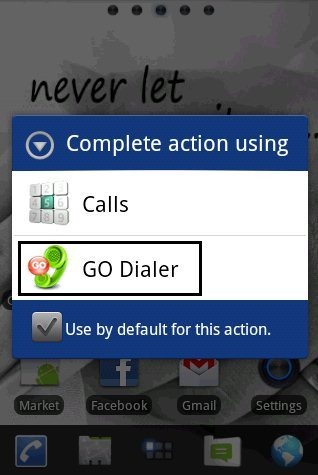
If you don’t want to add any home screen shortcut, then you can also tap on default dialer icon and then “Go Dialer” to access your favorite contacts directly from Go Contacts app.
For Samsung Android Phone Users, Below Are The Steps To Add Contacts To Favorites On Their Android Phone:
Step 1: Open your phonebook on your Android phone.
Step 2: Select a contact which you want to add as your favorite contact.
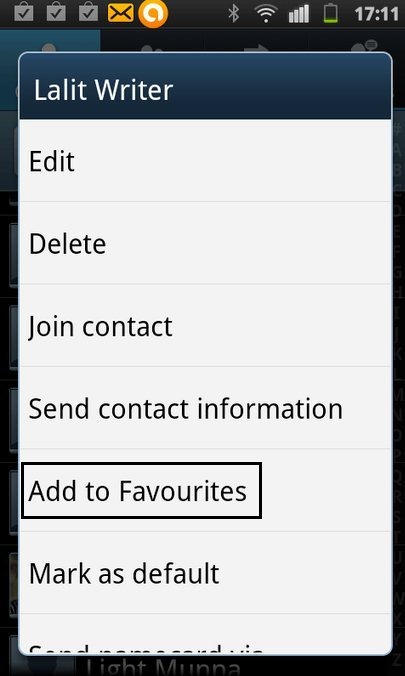
Step 3: Long press on the contact to explore contact options.
Step 4: Tap on “Add to favorites” option from the list of available options.
Step 5: Go back and open your phone’s dialer.
Step 6: Now in the favorites option, you will see all your contacts added as your favorite contacts with yellow colored star.
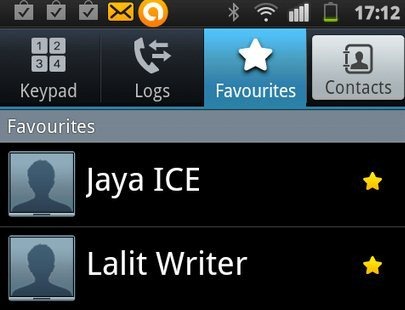
Just make your work easier and faster by adding contacts to favorite list on your Android phone.
Also.check out how to add frequently used apps and contacts to favorites on Android reviewed by us.
