iWisoft Free Video Converter is a free video and audio converter. iWisoft Free Video Converter enables users to convert both audio and video between various formats. The program incorporates predefined conversion profiles which are to allow you to easily convert audio and video into appropriate formats.
Features of free video converter:
- Convert video to several formats and rip audio to your favourite audio formats.
- Convert HD video to lower formats.
- Convert audio from one audio format to another.
- Supports playback of video on the most common devices like iPods, PSP, Wii, Blackberry, Zune and mobile phones.
- Covert audio and video in batch and save time.
- Conversion profiles configured for several devices making it easy to convert files.
- Estimate output file size with a bit rate calculator.
- Custom user profiles which can be saved for later use.
- Crop video.
- Trim audio or video you want to convert.
- Edit video by adding special effects like adjusting brightness, saturation and gray.
- Capture screenshots of video.
- Merge multiple videos into one.
- Preview video effects before saving changes.
- Support for the most common audio and video formats including MKV, DivX, MP4, MPG, FLV, 3GP, AVI, MP3, WAV, AAC, WMA, OGG and M4A.
How to use it
Installation goes on without any hitches. The installer takes you to the product’s homepage once installation is complete.
Adding files for conversion is very easy. You can drag and drop files to the interface or use the Add button. The Add button browses for all supported file formats and add those you select to the list. Individual files can be deleted using the Delete button or removed in batch with the Clear button. Files can be moved up and down with the Move Up and Move Down button.
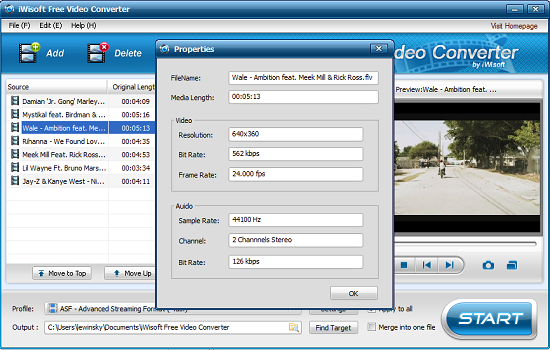
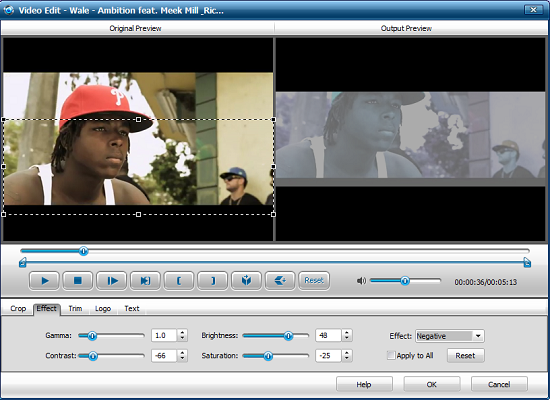
File information can be accessed by right clicking on a file and selecting properties. Listed files can be previewed in the preview window beside the list. On the same window, you can take a screenshot by pressing the camera icon and view captured images with the folder icon. Files can be edited via the Edit button. Editing options include cropping, trimming, adding logos and effects, and adding text. You can also flip the video vertically or horizontally and even select a section of the video to be converted. Editing is done in real-time with the user being able to view the effect of changes made to the video even before they are made permanent.
Once you are done editing the video choose a profile to use for conversion. Profiles are grouped based on their popularity and on compatible devices. The Settings button allows users to view and edit detailed information regarding profiles like audio and video bitrates, frame rates, frequency, and number of channels. You can edit a profile as you wish and save it for future use. Select the output folder and click Start. You can check the Merge into one file checkbox to convert output video into one continuous file.
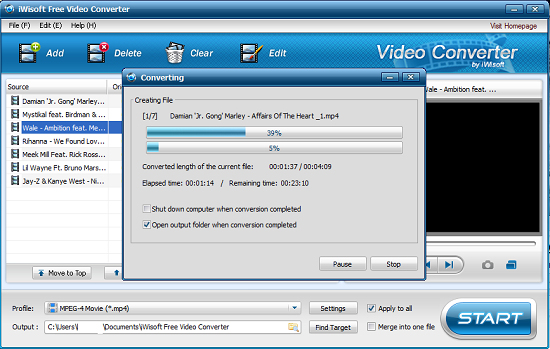
A dialog box takes you through the conversion process. The dialog box shows the current file being converted, length of file converted and both elapsed and remaining time. On the dialog box, you can choose to shut down the computer, open the output folder when conversion is complete and pause or stop conversion. A confirmation message informs you when conversion is completed.
Opinion
Simple and easy to use interface. Real time editing saves you the inconvenience of converting files several times before you can get exactly what you want. Drag and drop feature is very convenient.
Verdict
iWisoft Free Video Converter is definitely one of the few excellent video converters available for free.
