Here, is a step by step tutorial about how to add mp3 to ringtone library on Android. Setting up a ringtone on Android is a very easy task to perform. You can easily setup ringtone on Android from settings menu –> sounds –> phone ringtone. However, if you still have any issues on setting up mp3 as ringtone on Android, then check out our post on setting up an mp3 as ringtone on Android with easy steps.
For setting up mp3 as ringtone, you need to add the audio file to ringtone library on your Android phone. But, unfortunately my HTC Android phone does not provide any option to set mp3 as ringtone directly from ringtone library.
I finally found an easy way out to add my favorite audio file to ringtone library on Android phone. So, if you want to add custom ringtones to ringtone library then follow these easy steps below.
Steps To Add mp3 To Ringtone Library On Android:
Step 1: Open file manager, ES File Explorer or any other file explorer installed on your Android phone.
Step 2: Search and look for “media” named folder stored on your SD card when you access file explorer on your Android.
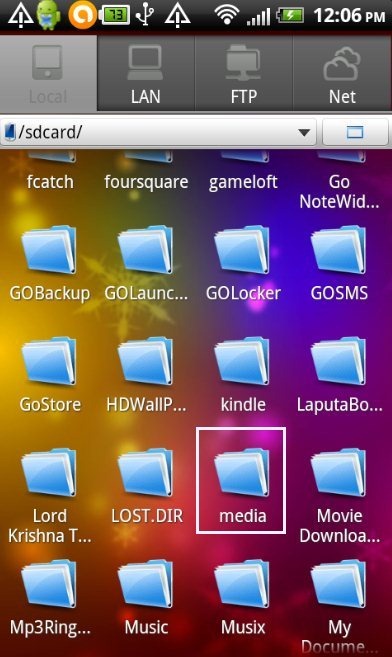
Step 3: Open “media” folder on your Android phone and then look for audios –> ringtones folder within media folder. If you don’t find audio –> ringtones folder within media folder, then create both the folders.
Step 4: Now come back and access the folder in which the mp3 which you want to add is located.
Step 5: Cut or copy the audio from the preferred folder and then paste it in media –> audio –> ringtones folder.
Step 6: Now open the settings menu –> sounds –> phone ringtone. You will find the pasted mp3 in your ringtone library. Now you can easily set that mp3 as your ringtone directly from ringtone library.
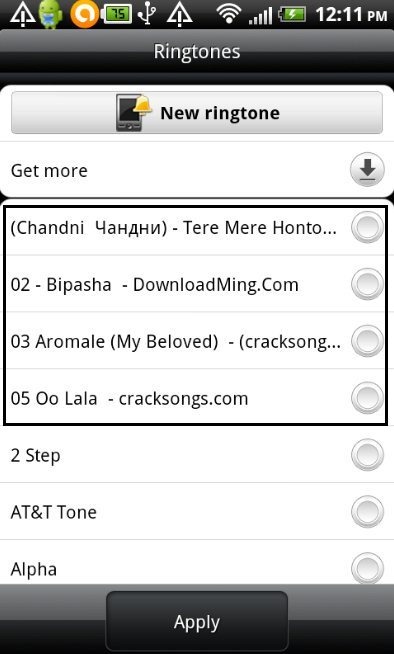
Just make your Android phone to play your custom ringtone whenever a call lands on your Android phone.
For installing any ringtone from computer to Android, you can follow the same steps given above by mounting your Android phone with computer. Just copy the mp3 from your computer’s hard drive and paste the file in media –> audio –> ringtones folder and you are done.
