• Home
  • Software Testing Service
  • About US
    • Privacy Policy
    • Disclosure
  • Write For Us
  • Submit Software
  • Contact Us
    • Subscribe
I Love Free Software
Best free software available all over the web. The free software categories include Windows Software, Social Networking Tools, and software installation videos.


  • Featured
  • Windows
  • Web Applications
  • App Store
  • Android
  • iPhone
  • iPad
  • Windows 8
  • Social Networking
  • Programming Tools

How To Wirelessly Sync Photos Between Android And Computer

By Lalit Aggarwal on February 14, 2012 | Sponsored Links

Here, are few steps to wirelessly sync photos between Android and computer.

Many a times it happens that we don’t have the USB cable of our Android phone or device. It is very difficult to carry USB cable every time with us. At that point of time, it becomes very difficult for us, if we want to copy any photo or image between computer and Android. Below are some steps to wirelessly sync photos between Android and computer.
WI-Fi Sync
Sponsored Links

Steps To Wirelessly Sync Photos Between Android And Computer:

Step 1: Login to Android Market.

Step 2: Search for “AirDroid” app in Android Market.

Step 3: Install the AirDroid app on your Android.

Step 4: Connect your Android device and Computer over same Wi-Fi network.

Step 5: Launch AirDroid app on your Android phone.
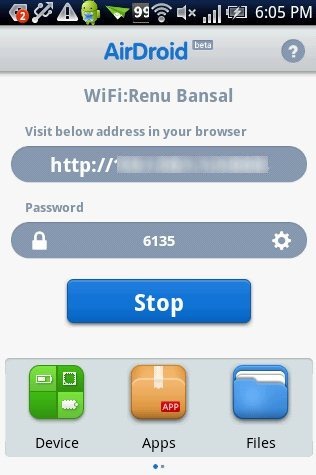
AirDroid App

Step 6: Tap on Start option from the app on your Android.

Step 7: The app will display a web address on Android.

Step 8: Enter the web address given on your Favorite browser.

Step 9: The web version of AirDroid will ask you a password. Enter the password from your Android which is being displayed in the app.
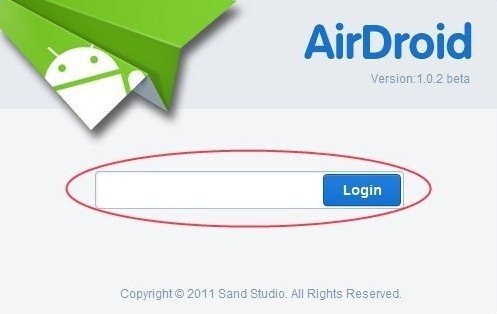
AirDroid Login Page

Step 10: The web page of the browser will display your phone name along with the files option and other apps. Click on “Files” option on the web browser of your computer.

AirDroid File Option

Step 11: As soon as you click on “Files” option from your computer, you will see all your SD card files and folders on your computer screen.
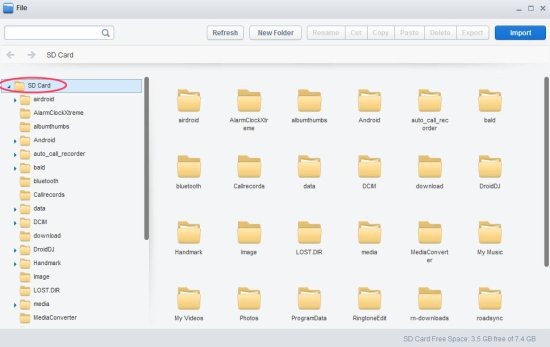
AirDroid SD Card Access

Step 12: Right click on the files and click on export and import option to copy files between computer and Android.

That is it. This way you can wirelessly sync your Android device with your computer. And sync photos or pictures between your computer and Android. Go ahead and try this out.

Home Page: Click Here
Works With: Android 2.1 and up
Free / Paid: Free

Link to This Page:


You Might Also Like:

  1. How To Wirelessly Sync Data Between Android And Computer
  2. How To Wirelessly Access Android Data From PC Browser
  3. How To Type Wirelessly Using Computer Keyboard On Android
  4. 5 Free Android Apps To Wirelessly Transfer Data From PC To Android
  5. How To Sync PC Files Up To 20 GB To Android

Be the first to know about Latest Free Software:

  • Join us on Facebook
  • Subscribe to our RSS Feed
  • Follow us on Twitter
  • Subscribe to Email Updates:

Posted in Android | Tagged android | Leave a response

Lalit Aggarwal

« Previous Next »

Featured Posts

  • 5 Free Snippet Managers To Manage Code Snippets
  • 5 Free Online Tools To Test Website In Different Resolutions
  • 5 Free Microsoft Access Alternatives
  • 5 Free IP Notifier Apps
  • 5 Online Mapping Websites
  • 5 Free Alternatives To iGoogle
  • 7 Websites To Download Windows 8 Themes
  • 5 Best Free Calculator Apps For Windows 8

Join More than 15,000 Followers!

Enter your Email Address
  • Submit Software
  • Software Testing Service
  • Write For Us
  • About Us
  • Privacy Policy
  • Disclosure
  • Contact Us

Link to Us:

Did we review your software here? Feel free to flaunt this badge on your website:

Free Software

Use this Code:

Copyright © 2013 I Love Free Software.

Powered by WordPress and Hybrid. New - H