Aria Maestosa is a free software you can use to create and edit MIDI files. The program can run on all major platforms including Mac OS and Linux. The program is available in 8 widely spoken languages.
Features
- Print musical notations.
- Easily compose and edit music.
- Add and play MIDI files.
- View and manipulate musical notations, tablature and drum views.
How to create and edit MIDI Files?
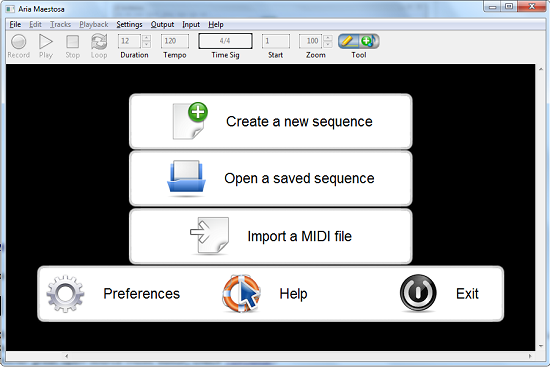
Installation was quite uneventful. The interface is fairly simple and aesthetically appealing. Users get to choose between various options when the program launches. The File menu allows you to perform some of the most common file operations like opening, closing, saving and printing. To export or import a file, click the respective options on the File menu. To open an existing file, choose open a saved sequence or Create a new sequence to create a new file. On clicking create a new file, a new tab is opened for you to start composing.
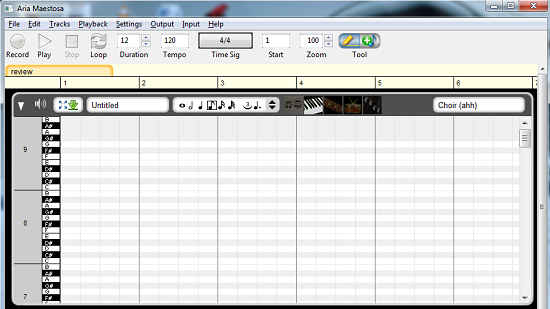
You enter a track title by clicking on the textbox labelled Untitled. You can choose between musical instruments to use by clicking on your preferred instrument at the top of the track tab. You can zoom in and out of the composition window by entering an appropriate zoom level or by scrolling up and down zoom levels. You can collapse the track window by clicking on the inverted play icon at the top or mute the track by clicking the mute icon.
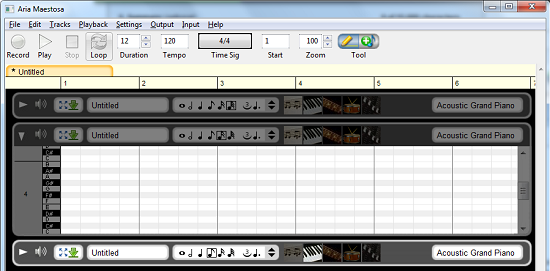
You can add a new track by selecting Add track from the Tracks menu or delete a track by selecting delete track from the same menu. To select notes, drag your mouse over them to highlight them. You can play a track by clicking the Play icon on the interface or by selecting Play from the Playback menu. You can also pause and stop a track by selecting the respective options in the Playback menu. If you ever want to play the track over and over again by clicking the loop button. You can choose how you want your track to be played by navigating to Play during edit submenu in the Settings menu. If you want the track to be played all the time, select always on the or play the track when a note is changed by selecting On note change or never play the track by checking never. You can set audio tempo and duration by entering desired values in the Tempo textbox or the Duration combo box.
Programs settings can be accessed by selecting Preferences from the settings menu. You can choose between 8 supported languages including Russian, Brazilian, Portuguese and Italian. You can set the default editor to be viewed by selecting between three available options in the Default Editor View dropdown. You can configure your audio output to use either Microsoft Software Synthesiser or Microsoft GS Wavetable by checking either option on the Output menu. You can select program output on the Output menu. User support is available by clicking Help which takes you to the support page which you can also access from the programs installation folder.
Pros
- You can import and export MIDI files from other applications
- Create and edit MIDI files easily
Cons
- Quite complicated for an ordinary user
Conclusion
Aria Maestosa is a handy software for anyone with the knowledge of creating tracks from various instruments but could be quite farfetched for an ordinary user.
