• Home
  • Software Testing Service
  • About US
    • Privacy Policy
    • Disclosure
  • Write For Us
  • Submit Software
  • Contact Us
    • Subscribe
I Love Free Software
Best free software available all over the web. The free software categories include Windows Software, Social Networking Tools, and software installation videos.


  • Featured
  • Windows
  • Web Applications
  • App Store
  • Android
  • iPhone
  • iPad
  • Windows 8
  • Social Networking
  • Programming Tools

How to Turn On Hardware Acceleration in Google Chrome

By Ishan Bansal on March 9, 2011 | Sponsored Links

Google Chrome version 9 and above comes with feature of Hardware acceleration. However, those features are turned off by default, as Google considers them to be in Experimental stage. However, it does lets you turn those on manually if you want to try that out.

Here are step to turn on Hardware Acceleration in Google Chrome:

  1. First you need to ensure that you are running Google Chrome version 9 or above. For that, just click on Wrench icon in the top right corner of Google Chrome, then click on “About Google Chrome” in bottom of that menu. It will open a pop-up window that will show you the version of Google Chrome that you are using.
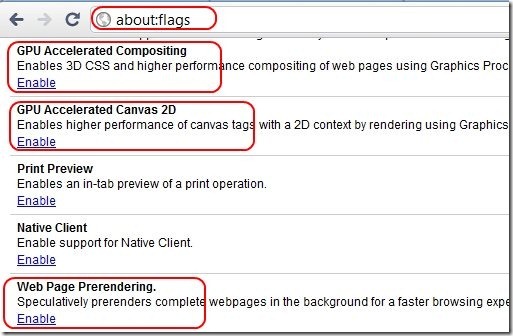
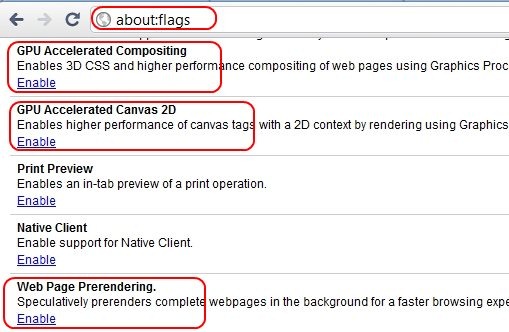
  2. Then, go to the address bar of Chrome, and type exactly this (without quotes): “about:flags”. Then press Enter.
  3. This will show all the experimental features of Google Chrome that are available in your version of browser. Scroll down in this list, and click on Enable for following 3 items:
    • GPU Accelerated Compositing
    • GPU Accelerated Canvas 2D
    • Web Page Prerendering

    Chrome Hardware Acceleration
    Sponsored Links

  4. That’s it. Just restart your browser, and then you’ll be able to experience faster web page loading.
If you are using a newer computer with Windows 7, and good graphical processor, then hardware acceleration can really speed up website loading speed. The speed improvement is more apparent when you are using heavy websites, like, gaming websites, or HTML 5 based apps like CloudCanvas, and HTML5 Online Photo Editor.

Link to This Page:


You Might Also Like:

  1. How To Enable Extensions in Google Chrome Incognito Mode
  2. Chrome Theme Maker: Create Theme for Google Chrome
  3. Google Share Button Chrome Extension
  4. Best Browser: Download Google Chrome
  5. Google Chrome Beta for Android

Be the first to know about Latest Free Software:

  • Join us on Facebook
  • Subscribe to our RSS Feed
  • Follow us on Twitter
  • Subscribe to Email Updates:

Posted in Browsers | Tagged google chrome | 3 Responses

Ishan Bansal

  • nice

    NICE!!!! This is realy working!! My brower is a little bit faster now, and I can see the diffrence!

  • Pingback: Turn on Hardware Acceleration in Google Chrome 10+ [Tweaks] | That Soviet Guy

  • Pingback: Turn On Hardware Acceleration In Google Chrome 10+ | Lifehacker Australia

« Previous Next »

Featured Posts

  • Top 7 Free Launchers for Android
  • 5 Free Snippet Managers To Manage Code Snippets
  • 5 Free Online Tools To Test Website In Different Resolutions
  • 5 Free Microsoft Access Alternatives
  • 5 Free IP Notifier Apps
  • 5 Online Mapping Websites
  • 5 Free Alternatives To iGoogle
  • 7 Websites To Download Windows 8 Themes

Join More than 15,000 Followers!

Enter your Email Address
  • Submit Software
  • Software Testing Service
  • Write For Us
  • About Us
  • Privacy Policy
  • Disclosure
  • Contact Us

Link to Us:

Did we review your software here? Feel free to flaunt this badge on your website:

Free Software

Use this Code:

Copyright © 2013 I Love Free Software.

Powered by WordPress and Hybrid. New - H