The buzz is around with the Google Drive being one of the trendiest launches for the Google users to store files and docs online. Did you know that you could actually map Google drive on your Hard Drive and use it directly from there?
Well yes it is possible you can do the mapping yourself and make use of the Google drive much easier and manage your online shared files with ease. On a Windows 7 or a Vista Platform the drive once mapped appears in the Favorites folder, whereas on a XP powered operating system the Drive comes up in the My Documents folder. Overall the shortcuts are pretty easy to use whereby in case you assign a specific drive letter for your Google Drive Account it will become much more convenient to access your Google Drive Account.
For those techies out there who are well averse with the use of the command prompt can use the DOS command: subset. You may even use a small program named the ‘’Visual Subst’’ that makes it much more convenient for you to create a drive association. Visual subst comes with a GUI interface which is used as a subst command. Following the tutorial below you can carry out the entire process of mapping your drive.
How to Map Google Drive as a Hard Drive in Windows:
- The first step is to download Virtual Subst
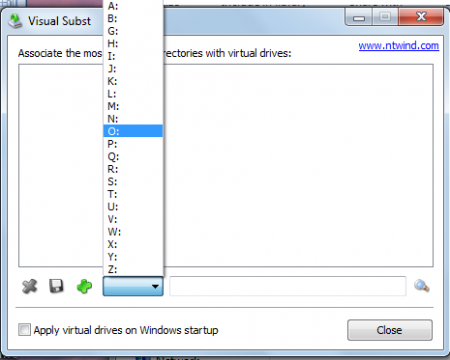
- The next step is to assign a drive letter to your Google Drive account and locate the path for your drive on your computer. For Windows XP the drive path is C:\Documents and Settings\[Username]\My Documents\Google Drive whereas for your Windows 7 or Vista powered machines the path would be C:\Users\[Username]\Google Drive. You may even locate the drive yourself through the search option on the right side.
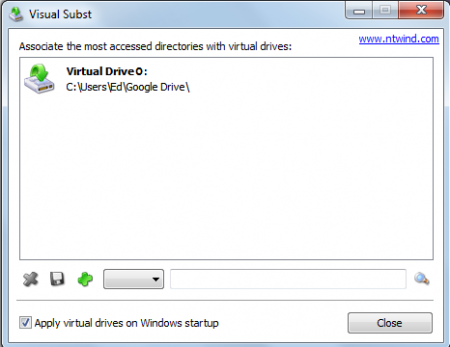
- Before you click on the green colored plus button ensure that you have checked the option of Apply Virtual Drives on Windows Startup.
- Once you are done associating, you would find the virtual drive appearing in the Virtual Subst list.
This is all you need to do in order to map Google Drive on your system. You can access your Google Drive right from your Windows Explorer where the Drive would appear in the name which you have associated it to. You can delete your Google Drive any time you wish to by opening the Visual Subst, selecting the virtual drive and clicking on the Red Cross appearing in the window.
