Here is a fun little app for Windows 8 called MyTextTwister that enables you create cool text effects and ASCII art. You can use these fancy text to show off to your friends on all kinds of social networks and email.
This free Windows 8 app allows you to create fancy text for Facebook, Twitter, Email etc. so that you can decorate, stylize, personalize your status updates or messages. MyTextTwister also allows you to add cool looking ASCII art alongwith your text. The ASCII arts decorations have been divided into many categories like: hearts, characters, greetings, exclamation, and assorted. As an example to show what MyTextTwister can do, I created the ASCII art below using this free app.
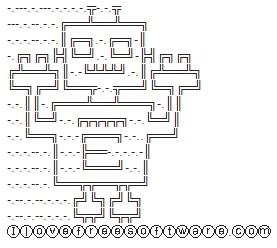
There are quite a bit of unique ASCII arts and fancy text that can be produced by this application. The app can also be used to play pranks on your friends and family by using the upside down fancy text that as it’s name suggests will invert the text and this will be amazingly annoying to the reader. Because the app produces ASCII output therefore the created fancy text and ASCII art can used on any application or website.
To get started with this free app just download and install this app from the link provided at the end of this post. After you have successfully installed MyTextTwister just run it from the start screen just like other Windows 8 apps. After you have started the app you will have the interface in front of you as shown in the screenshot below.
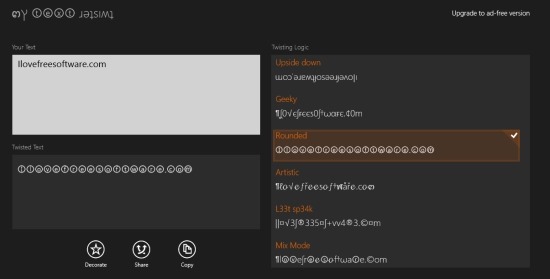
To create fancy text with this app, just enter you text in the text box which says “your text” and now just select the style of the text from the listed styles which are shown in the right side of the app window. The result will be shown in the text box called twisted text which is located on the left of the app window. Now, if you would like to copy this text to the clipboard for using it, just click on the copy button and now you can use it anywhere you want.
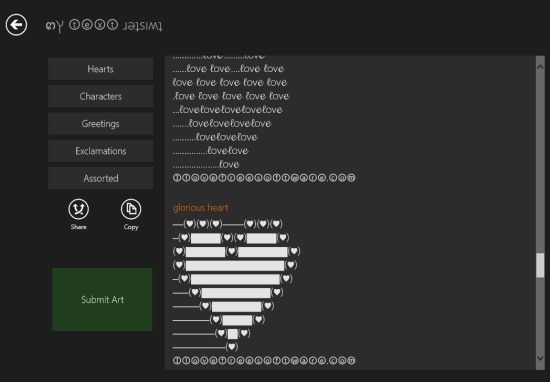
To add ACII art to the text that you just created, click on the Decorate button as seen in the above screenshot. This will bring up a window as shown in the screenshot below. Here all the ASCII art will be found with the text that you wrote just below them. To switch categories, just click on the buttons which are located on the left side of the app window. The app provides you with five different categories namely Hearts, Characters, Assorted, Exclamation, Greetings as seen below.
The app also allows you to share your creation by clicking on the share button which will bring up the share charm bar as shown in the screenshot below.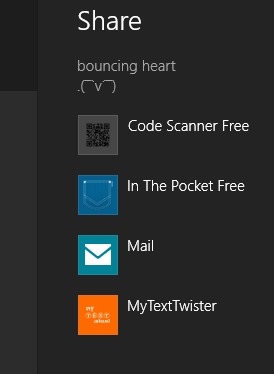
Make fun greeting cards, prank people, create fun or cute little messages with this free ASCII art app for Windows 8. To download this Fancy text creator for Windows by click on this link.
