Leaf is an easy-to-use free software wherein, you can colorize pictures in a rather fun way. Although there are various freeware that carry out this simple task of coloring pictures, however, the thing which makes Leaf different from others is its ability to color a picture partially. For example, let’s say you have an picture in color, and you want to convert a portion of that picture to Grayscale. With Leaf we can bring about this change.
With Leaf, you can start off with your image already in Grayscale, Sepia or negative and subsequently colorize the image. Leaf is generally operated through a popup menu which can be called upon through clicking the right button of your mouse. While in touch-screen PCs, you need to hold your finger on the screen for a few seconds and doing this will make the menu appear.
How to download Leaf:
- Head over to the website
- Click on “download”
- Click on “Run”
- The installer then downloads the Leaf installation set-up
- Install Leaf
However, you are required to “Restart” you system in order to access Leaf. After restarting, click on the Leaf icon, popup menu will get opened. Here is how to use Leaf:
- Click on the right button of your mouse, and click on open.
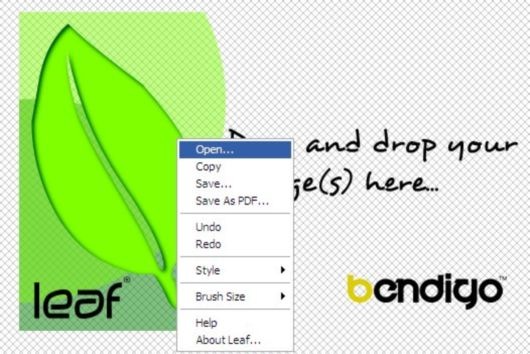
- Select the picture with which you want to play
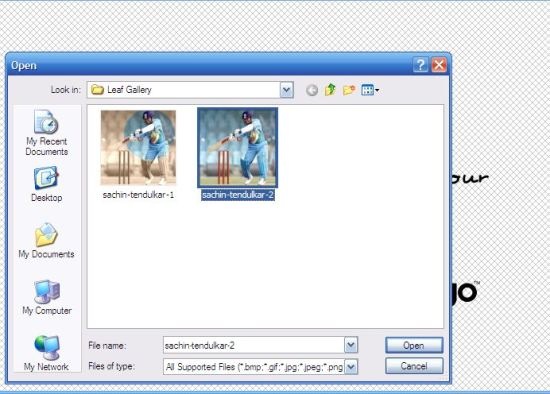
- The image will appear on the window.
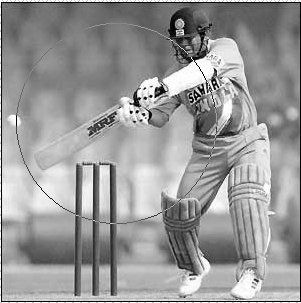
- Again right-click on the image, click on “styles”
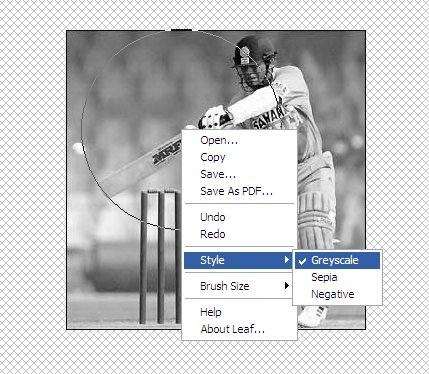
- Select one of the given styles. Apart from styles, there are various sizes that are available while selecting the brush. Hence, you can select the size of the brush by clicking on Brush.
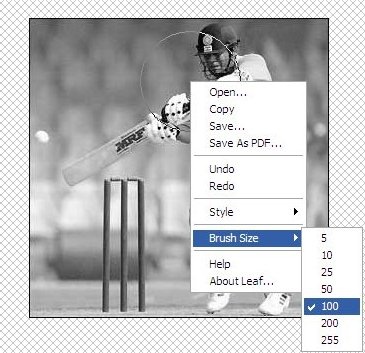
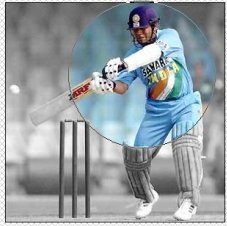
- After selecting the style and size, get ready to colorize the picture. You can add colors to the entire image or you can color the image partially too.You can also take a look at the image below that I played around with in Leaf to understand better.
There are some other cool things also that you can do to your photos: convert photo to sketch, convert photo to text, and even convert photo to models.You can also check out another similar article Photo Black & Color.
You can export your images in PDF, PNG, GIF, JPG and BMP. Leaf pictures can be imported in most of the popular image formats. Not forgetting to mention the most attractive part Leaf is absolutely free to download.
Leaf is a fun way to colorize pictures and is user-friendly. Just drop on to the link and get it right away.
