trimDesk is a cool, free desktop enhancement software which you could use to hide desktop icons, taskbar, desktop backgrounds or the gadgets easily. The software comes with an automated programming which quickly takes care of performing the above activities with just a few clicks in it. It is available in two options where the free version is named as the ‘’Lite’’ and the paid version is termed as the ‘’Pro’’. trimDesk Lite has been reviewed below which though lacks with some advanced features is quite an efficient tool. It enables you to efficiently manage desktop settings. TrimDesk is very effective for hiding your entire screen for say:
- when you want to take a screenshot to put up on the web,
- when you are working on something confidential or you would like to hide the entire screen of your computer at a single click so that others cannot view what you are working, or
- while giving presentation on your system.
Installing trimDesk
In order to install this application you would be required to visit the download site of the Developer here. You would see the two releases of this software where in order to download the freeware you would need to scroll down and click on the Download option against the Freeware Lite version. Depending on which installation file format you click on, it would roughly take a couple of minutes after which you are ready to install it on your computer. In case you clicked on the zip file you will have to unzip it and run the trimdesk.exe file. If you are interested to try some more desktop enhancement utility, you can try XWidget, Capture.Net and Aximion 3D Desktop reviewed by us.
Using trimDesk to hide desktop icons
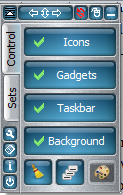
Once you are done installing trimDesk you will have to launch the program by clicking on the shortcut or the launch file. A new window would appear on your screen which surely looks pretty similar to an interface of a cool game which you might have played on your computer. It is pretty small in size but is sheer powerful once used. Once you move away the cursor from the program it compresses itself into a small bar on your screen.
The main screen presents you with the options which you would like to hide in one go. The options included in the list are as follows:
- Icons
- Gadgets
- Taskbar
- Desktop Wallpaper
In case you would like one or two of the above options not to be hidden when you run the program you can click on those and they would be unchecked. Below the four options mentioned above you have three keys where each represents the following:
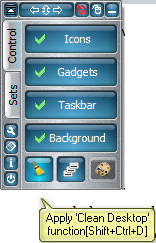
- 1st key (from the left): Clicking on this runs the software and hides all the windows, icons, wallpaper, gadgets along with the entire taskbar.
- 2nd key (middle): When you click on this it will minimize all the windows which you might have opened in front of your screen.
- 3rd Key (extreme right): The last key in the row represents the key to change the desktop colour.

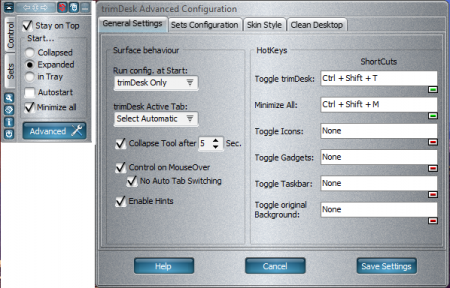
Further to make changes to the settings you need to click on the trimDesk Configuration option which appears on the left of the window. It would open up a new window with several options on it. So here you can setup the entire functionalities, the look or skin of the software, configuration of trimDesk, and more.
Now that you know all about trimDesk, you can use this freeware to hide desktop icons, taskbar and windows.
