MindStick Cleaner is powerful, free system cleaning utility that helps you to clean your PC within minutes. It is available for free and is user friendly. This free system cleaner keeps your system clean and removes all the unnecessary files. You don’t require any technical expertise to use the software as the process is very easy and the software prepares a report for you to clean the files that are unnecessarily consuming the system space.
Installing this free system Cleaner
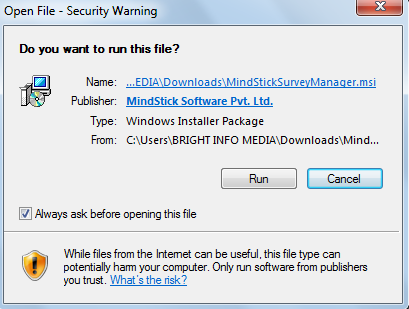
The software installation is very easy and you just need to follow the step by step process to install MindStick Cleaner from here. Once you visit the site you can see the download button on the right corner of the page. Once you click on the download button you will be asked to fill your name and e-mail address in a form. After this the download will start and a .msi file will be downloaded. Once you click the file the installation will start and by following the step by step process you can easily complete the installation. People looking for a simple cleaning app can also try Softorino Memory Optimizer, DiskMax and Crap Cleaner.
User Interface of this free System Cleaner
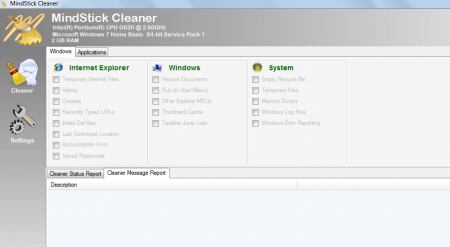
The interface is pretty simple and not a very stylish one. It has all the tabs near the header and users can easily create different surveys and reports. MindStick Cleaner is similar to other windows software and one will not face any difficulties in carrying out their work.
Using MindStick Cleaner
At the right panel you have the options named cleaner and settings. The cleaner option helps you see all the windows applications and software that you want to analyze or clean. You can select the names of the files by ticking them and if you don’t want to perform any action on an application then you can remove the tick marks near them. Once you are finished selecting a specific application or windows file then you can either run the cleaner or analyze them. To analyze or run the cleaner you need to go to the run cleaner button at the bottom of the software.
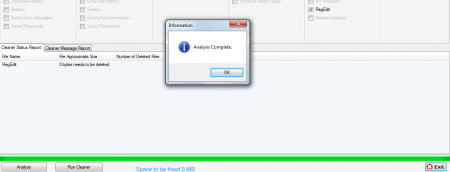
Below the applications there is a window where you can see the cleaner status report and cleaner message report. When you click on the settings tab in the left panel you will get a page where you can click near the options by tick marking them. There are only two options in the settings page, one is check for updates and other is applying default settings. To exit the software you need to click on the exit button in the footer at the right side.

MindStick Cleaner is a very simple software that helps in keeping the system clean and removing the files that are just taking extra space in your system.
