Lock Tab is a Chrome extension that allows you to lock tabs on your browser for preventing them from accidentally being closed. This Chrome extension basically locks the tabs in such a way that they cannot be closed with keyboard shortcut or with the mouse directly. When you try to close a locked tab, it shows a dialog window saying click “Leave the page” for leaving or closing this locked tab. In this way you can close any locked tab.
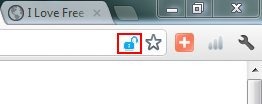
Lock Tab Chrome extension offers the easiest and user-friendly way to protect the opened tabs on browser. For locking any tab left click the blue colored lock icon in the URL bar of your browser. Click the same lock icon again for unlocking the locked tab. When a tab is not locked the icon would be in the unlock position, as soon as you click that icon for locking any tab, the icon will be in the locked position. When you lock a tab the tab would show a default hit message “locked” like for example if you lock Google.com, then it will show a hit message as “Locked Google”.
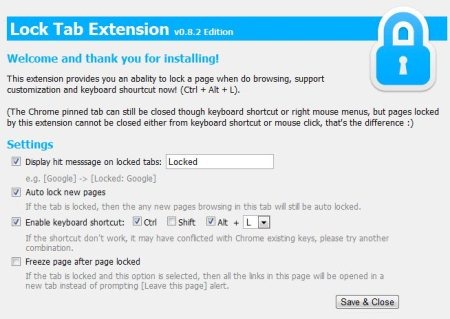
Lock Tab Chrome extension also allows you to change the default hit message “locked”. You can enable “Auto Lock new pages” option for auto locking the new pages that you are browsing in the same tab. This Chrome extension also includes an option to enable keyboard shortcuts, but anyhow it was not working at all. I tried a lot to lock a tab using the keyboard, but was unsuccessful. You can enable the option of freeze page for opening the links of a locked page in a new tab, instead of prompting you to leave the page.
Don’t forget to check out Window close protector reviewed by us.
Some Key Features Of Lock Tab:
- Easy to use.
- Shows the lock icon in the URL bar.
- Lock/unlock a tab with a single click.
- Displays hit message on locked tabs.
- Automatic locking of new browsing tabs.
- Freeze page option.
You would also like to check out free to do list extensions.
How To Install Lock Tab:
- Visit Chrome web store page of Lock Tab.
- Click Add to Chrome button.
- Click “install” button in the install confirmation window.
- Close Your Google Chrome, wait for few seconds and reopen it.
- You will come across a lock icon in the URL bar.
- Select any tab and click the lock icon for locking it.
- Click the same lock icon again for unlocking it.
Lock Tab is one of the best utility Chrome extensions which can protect tabs from being closed by mistake. Try this for free.
