• Home
  • Software Testing Service
  • About US
    • Privacy Policy
    • Disclosure
  • Write For Us
  • Submit Software
  • Contact Us
    • Subscribe
I Love Free Software
Best free software available all over the web. The free software categories include Windows Software, Social Networking Tools, and software installation videos.


  • Featured
  • Windows
  • Web Applications
  • App Store
  • Android
  • iPhone
  • iPad
  • Windows 8
  • Social Networking
  • Programming Tools

Process Notifier: Tutorial on How to Download and Install

By Jaya on August 4, 2011 | Sponsored Links

Process Notifier as we described in our earlier article is a free tool which send you email notifications if a process of Windows starts, stops, is found or not found. Here is a detailed tutorial on how to download and use Process Notifier which we described in our article earlier.

Step 1: Download the 1.1 MB file from the website or click here to download.
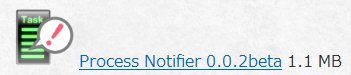
download link
Sponsored Links

Step 2: A popup window will open to download the file.
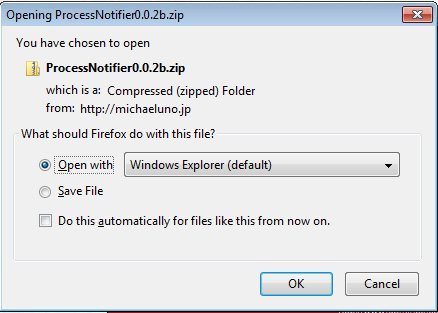
download popup window

Step 3: A Zip file will be downloaded to your system. Extract the Zip files.

downloaded zip folder PN

Step 4: Double click the ProcessNotifier.exe file to run.
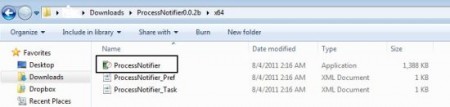
to run PN

Step 5: After double clicking a popup window will open to run the program.
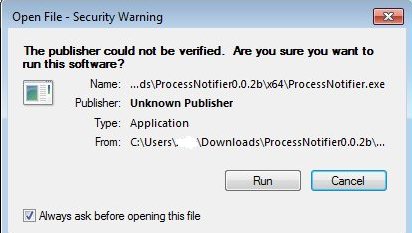
run the app PN

Step 6: Right click the system tray icon of process notifier and select “Email Settings”
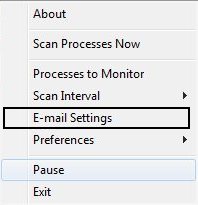
select email settings PN

Step 7: Go to the Message tag  and enter a Email address for receiving email notifications in the “Send To (Email Address)” field. Then click save.
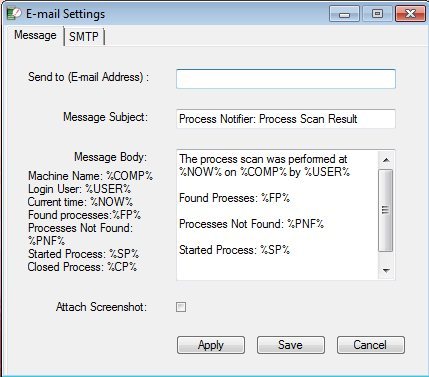
email settings PN

Step 8: Next, right click process notifier icon in the system tray and select “Processes to Monitor”
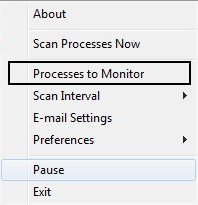
select process to monitor PN

Step 9: In the first field, “Process name to check,” enter the process name to monitor like notepad.exe. In the next line which says, “Notify when the process is”  choose the timing when you want to be notified from the drop down list. If “Not Found” is selected,  the program will send you a email notification when it scans running processes and cannot find the specified process name.  Press “Add” and then “Save”.
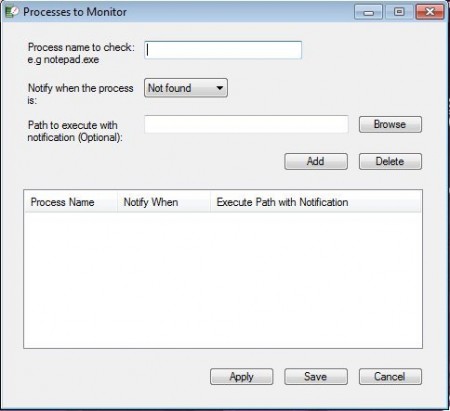
add name of process PN

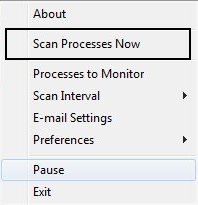
Step 10: If you would like to test that a process scan works and sends a E-mail to you, go to “Scan Processes Now” from the tray menu and click “OK.”
scan process now PN

Process Notifier is a great tool to have on your system. Read more about Process Notifier, or try free here.

Home Page: Click Here
Works With: Windows
Free / Paid: Free

Link to This Page:


You Might Also Like:

  1. Process Notifier: Get Notification Emails for Windows Processes
  2. Feed Notifier: RSS Feed Notifier for System Tray
  3. Free CPU Usage Monitoring Software: ResLoad Notifier
  4. Download Process Director for Windows
  5. You’ve Got Mail: Free Email Notifier for System Tray

Be the first to know about Latest Free Software:

  • Join us on Facebook
  • Subscribe to our RSS Feed
  • Follow us on Twitter
  • Subscribe to Email Updates:

Posted in Security Software | Tagged email notification, email notifications, monitor, process notifier | Leave a response

Jaya

« Previous Next »

Featured Posts

  • Top 7 Free Launchers for Android
  • 5 Free Snippet Managers To Manage Code Snippets
  • 5 Free Online Tools To Test Website In Different Resolutions
  • 5 Free Microsoft Access Alternatives
  • 5 Free IP Notifier Apps
  • 5 Online Mapping Websites
  • 5 Free Alternatives To iGoogle
  • 7 Websites To Download Windows 8 Themes

Join More than 15,000 Followers!

Enter your Email Address
  • Submit Software
  • Software Testing Service
  • Write For Us
  • About Us
  • Privacy Policy
  • Disclosure
  • Contact Us

Link to Us:

Did we review your software here? Feel free to flaunt this badge on your website:

Free Software

Use this Code:

Copyright © 2013 I Love Free Software.

Powered by WordPress and Hybrid. New - H