Delete All Except is a very efficient, free file cleaner that helps in deleting a set of files in a folder whereby giving you the option to select the files which you would like not to be deleted. People who use several file formats on their computer and save them in a single folder would find this free bulk file cleaner very useful when they wish to delete numerous files besides files of a specific name or a format. Using this free file management software is pretty simple wherein you need to be aware of the file formats and basic exploring knowledge.
Installing this free file cleaner
Installation of this free file cleaner is easy where you need not do much more than just downloading and running the installation procedure. The first step involves downloading the zip file containing the executable file on your computer from here. Once you have the zip file you need to unzip it and launch the setup.exe file. After the installation process is over just click on the launch shortcut from your desktop and you are ready to use this free file management software. If you are looking for a simple file cleaning utility, you can try Xleaner, BleachBit Free and Hardwipe.
Using this free file cleaner
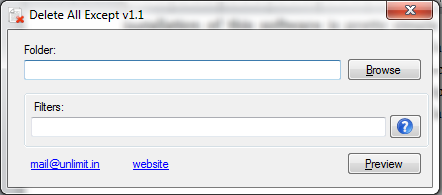
After you launch this free bulk file cleaner you would see a very simple interface with very few options on it. The window is a small one which has two blank spaces each representing the Folder location and the filters respectively. To begin with you need to be aware of the folder where you wish to delete specific bunch of files from. You need to be cautious enough about the location before you proceed to select the specific folder. The reason for this is that you might accidentally end up deleting all the files even the ones which you would have not liked to be deleted.
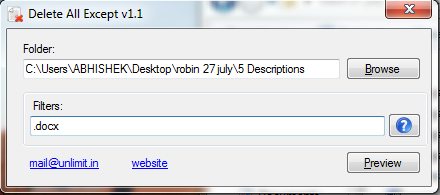
The moment you click on the Browse option you would need to browse to the folder from the explorer that pops up. Once you have selected the folder the next step is to type in the format which you wish to be kept and not deleted. For instance in the screenshot below the folder we selected has .docx and mp3 file formats in the folder. Considering we had to delete all the mp3 files and leave the .docx files as they are we have to mention ‘’*.docx’’ in the blank space at the bottom. Moreover the folder had some files of the ‘’*.doc” format so we can insert a ‘,’ and filter the deletion process for two formats as well.
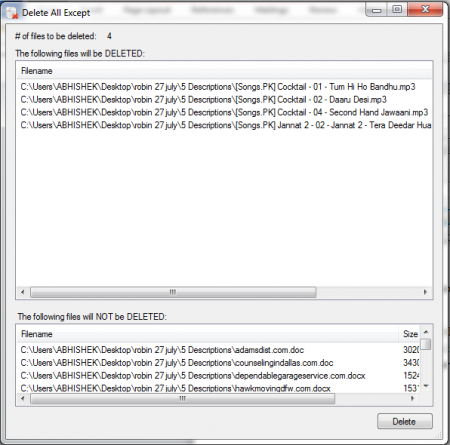
Now when you are done with all the above the final step is to click on preview. Doing so will pop up a new window which lists down all the files that would be deleted as well as the ones which would be safe after the execution of the entire process. Moreover in case you wish to check out how many files get deleted after you run the deletion process you can check it at the top of the preview window. It lists the number of files that would be deleted right next to the heading ‘’# of files to be deleted’’.
Lastly to execute the process you need to click on the Delete button at the bottom of the preview window. This free file cleaning utility before execution would ask you if you wish to continue or not where after you select ‘’yes’’ the files would be deleted.
Please Note: While using this software you must be 100% sure about which files you are deleting and whether the formats inserted at the bottom are correct. In case you miss out on these the files cannot be retrieved once processed.
Now that you know all about Delete All Except, you can use this freeware to delete a large number of files easily.
