GroundHog Internet Access is a free software which allows you to set the internet usage time limit for kids while they use computer at home. This parental control software is simple and straight-forward unlike other parental control software, as it offers an easy way to set time limits for kids, and limit their computer time.
Internet has never been a safe place for kids. With the help of this parental control software to limit computer time, you can easily restrict the internet usage.
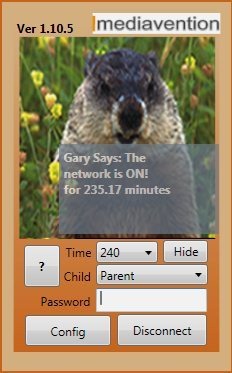
This free parental control software is small in size and comes in a file size of only 4.27 MB. The interface is pretty cool and basic, that can be easily understood even by the beginners.
For using this software to limit computer time, you need to configure it according to your preferences. You need to add your children to this parental control software by entering their names and specify the internet usage time limits for each of them. Now Whenever you handover the computer to any of your child, select his/her name from the Child dropdown menu on the main interface window, enter child password and click the Allow button. Now, your child is allowed to use the computer within the time limit set.
Don’t forget to check out Romaco Timeout reviewed by us.
Key Features Of This Tool To Set Internet Usage Time Limits:
- Easy to use parental control software.
- Lightweight, with a file size of only 4.27 MB.
- Curfew Window to show when the computer usage is closed, controlled or free.
- Displays the remaining computer usage time on the main interface.
- Activity log window which shows you who did what and when?
- Completely blocks the internet by making the network OFF.
Also, check out best free parental control software.
How To Get Started With This Tool To Set Internet Usage Time Limits:
- Open the homepage of this tool and register yourself by entering your name and email address in their respective boxes.
- Click Register Free button.
- You will be directed to the download page, click the download link for downloading the software.
- Run this free parental control software and follow further simply instructions for installation.
- GroundHog opens up with it’s main interface, in which you need to click the Config button.
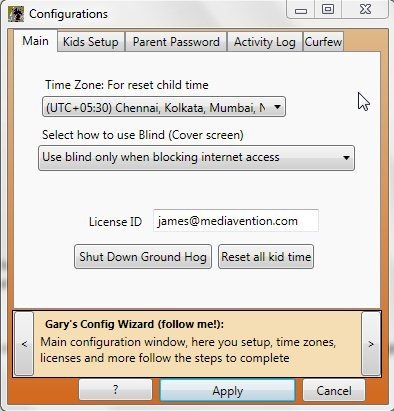
- Configuration window opens up, now within the Main tab, you need to select you Time zone and select how to use blind from their respective drop down menus and click the Apply button.
- Move on to Kids setup tab for adding children and specifying their internet usage time limit. After adding child and specifying internet usage time limit, click the Apply button.
- Head over to the Parent password tab, enter your desired password twice and click the Apply button.
- Thats it, now you are ready to use this parental control software.
