• Home
  • Software Testing Service
  • About US
    • Privacy Policy
    • Disclosure
  • Write For Us
  • Submit Software
  • Contact Us
    • Subscribe
I Love Free Software
Best free software available all over the web. The free software categories include Windows Software, Social Networking Tools, and software installation videos.


  • Featured
  • Windows
  • Web Applications
  • App Store
  • Android
  • iPhone
  • iPad
  • Windows 8
  • Social Networking
  • Programming Tools

Free Software to Control Screen Brightness Of Monitor: PangoBright

By Mohit Mohan on April 14, 2012 | Sponsored Links

PangoBright is a free software to adjust or control screen brightness of monitor. This free software fits itself into your system tray and allows you to control screen brightness from system tray itself.

This brightness control software offer brightness level starting from 20% to 100%. So you can select any of the preferred brightness level from the available brightness levels.
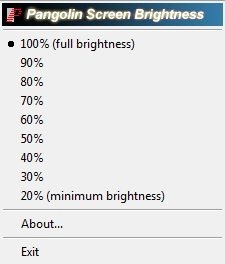
PangoBright
Sponsored Links

PangoBright even allows you to adjust screen brightness of multiple monitors individually.

This free brightness control software offers an easy and straight-forward way to adjust the screen brightness. With the help of this basic tool, you can adjust the screen brightness to the desired level.
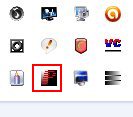
For Using PangoBright, just launch it and click the system tray icon. You will see brightness levels ranging from 20% to full brightness of 100%. Now, you need to choose your desired brightness level by clicking on it. That’s all you need to do.

Also, check out free software to view DWG files.

Some Key Features Of PangoBright To control Screen Brightness:

  • Very basic and simple interface.
  • Easy to use brightness adjusting tool.
  • Lightweight software, so it takes very less space on your hard disk.
  • Choose your preferred brightness level.
  • No installation required.

Don’t miss to check out free software to increase computer speed.

How To Download and Install PangoBright To Control Screen Brightness:

  • Go on to the homepage of PangoBright and click the download link.
  • An exe file of PangoBright will be downloaded into your system.
  • Run the PangoBright exe file by double clicking on it.
  • Now, check your system tray, you will find a new icon of this tool.
  • Single click the icon, you will come across the brightness levels.
  • Choose the preferred brightness level by clicking on it.

PangoBright is one of the most easy to use screen dimmer which lets you control screen brightness effortlessly. Download PangoBright for free.

Home Page: Click Here
Works With: Windows
Free / Paid: Free

Link to This Page:


You Might Also Like:

  1. Free Software To Control Screen Brightness
  2. Free Screen Dimming Software to Control Screen Brightness: Dimmer
  3. Free Software To Adjust Screen Contrast, & Screen Brightness
  4. Free Software to Adjust Screen Brightness: Desktop Lighter
  5. Free On Screen Keyboard Software

Be the first to know about Latest Free Software:

  • Join us on Facebook
  • Subscribe to our RSS Feed
  • Follow us on Twitter
  • Subscribe to Email Updates:

Posted in Desktop Enhancement | Tagged screen brightness | Leave a response

Mohit Mohan

« Previous Next »

Featured Posts

  • Top 7 Free Launchers for Android
  • 5 Free Snippet Managers To Manage Code Snippets
  • 5 Free Online Tools To Test Website In Different Resolutions
  • 5 Free Microsoft Access Alternatives
  • 5 Free IP Notifier Apps
  • 5 Online Mapping Websites
  • 5 Free Alternatives To iGoogle
  • 7 Websites To Download Windows 8 Themes

Join More than 15,000 Followers!

Enter your Email Address
  • Submit Software
  • Software Testing Service
  • Write For Us
  • About Us
  • Privacy Policy
  • Disclosure
  • Contact Us

Link to Us:

Did we review your software here? Feel free to flaunt this badge on your website:

Free Software

Use this Code:

Copyright © 2013 I Love Free Software.

Powered by WordPress and Hybrid. New - H