Write Monkey is free and effective writing application for people who love writing but are distracted with other activities over a system. Yes this software is a very handy application which takes away the entire clutter from the desktop and gives the writer a distraction free space to work and complete their tasks. So if you have too many things to bother you over your desktop taking the required attention away from your actual writing work then use this application as it will ensure you complete your book, any writing assignment or the blog post which you are working on in peace.
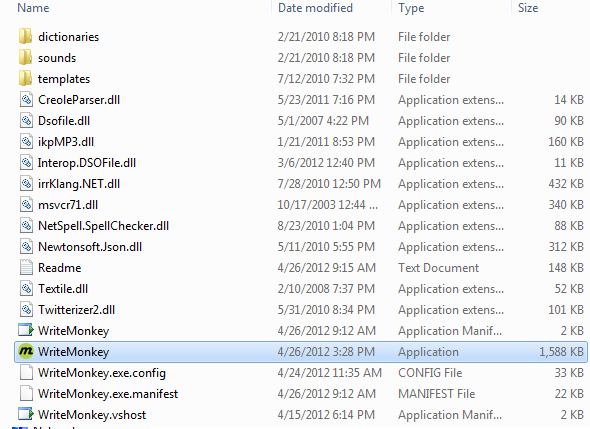
After you download Writer Monkey you just need to unzip the application file to your favorite folder or drive. You would need to do no more than just opening the folder and clicking on the WriteMonkey.exe to launch the application.
How to use this free Writing Application?
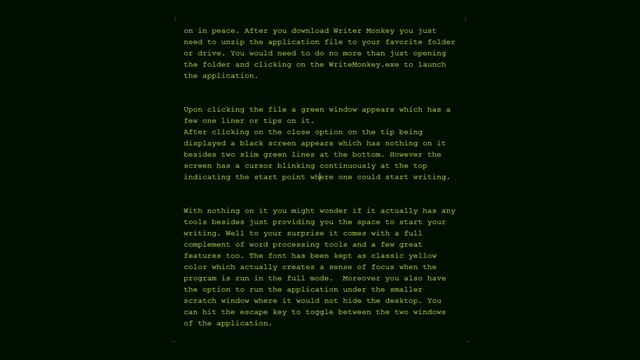
Upon clicking the file a green window appears which has a few one liner or tips on it.

After clicking on the close option on the tip being displayed, a black screen appears which has nothing on it besides two slim green lines at the bottom. However the screen has a cursor blinking continuously at the top indicating the start point where one could start writing.

With nothing on it you might wonder if it actually has any tools besides just providing you the space to start your writing. Well to your surprise it comes with a full complement of word processing tools and a few great features too. The font has been kept as classic yellow color which actually creates a sense of focus when the program is run in the full mode. Moreover you also have the option to run the application under the smaller scratch window where it would not hide the desktop. You can hit the escape key to toggle between the two windows of the application.
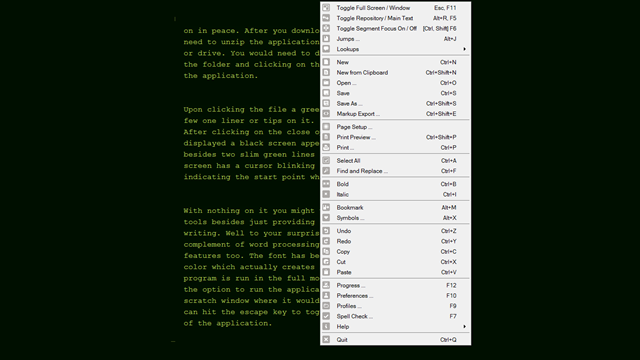
Moreover click on the right click button of your mouse and you would be surprised to see the numerous options that come along. It has more than 30 context menu entries which lets you customize the program in several ways. You can change the look, color, size, language, layout, typeface size and virtually perform all the activity which you would have on your favorite word processor. It also gives you the option to save a document, print them or export them, mark the text as you like, make them bold italics and add all the other effects you would like to. You may even save your preferences as profiles so that you have the ease to use the same settings when you work on this application later. Moreover one of the additions which is the Jump feature of the Write Monkey enhances the ‘built-in bookmark tool’ along with some of the other features it comes with. Those features include a Repository, Segment focus, and Inline comments.
As a user we may even enable the realistic old time typewriter sound to our fancies. Another handy feature which as a user you should make in your preferences is selecting the Always Save on Exit option which would integrate Write Monkey with Firefox through the All Text extension. You can name it and you would have the long list of features which this efficient writing tool has within it. Some of the features worth mentioning are the:
- Multimonitor support
- Timed Writing
- Integrated backups
- And More.
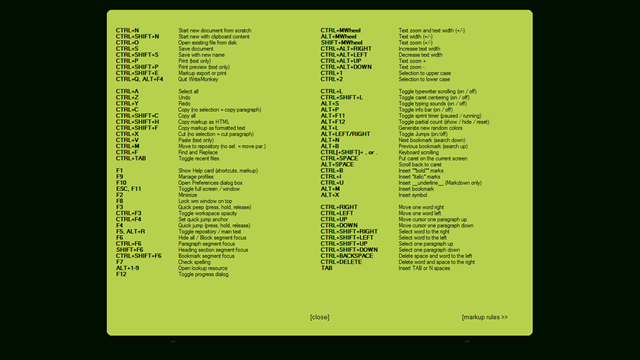
You may browse through the official website of the developers of this writing application where the documentation and assistance which includes the ones at the forums gives many handy recommendations. Moreover pressing the F1 key brings in hosts of help options which list out the shortcuts and the keystroke combinations which would help using the Write Monkey writing application much quicker and simpler.
Download WriteMoneky free.
