Screen Draw is a Firefox add-on to help you to draw an image on a particular webpage. Since, many of us use the Firefox browser apart from the default Internet Explorer, Screen Draw is easily available from the add-on section of the Firefox browser. This add-on is available for free and is very easy to use.
Download:
Use the above link to go to the add-on section of the Firefox browser. In this webpage click on the Add to Firefox button. After clicking on the button, it will start downloading. The size of the add-on is only 82kb, which only takes few seconds to download. After downloading the add-on, Firefox will notify about the installation process. Click in the Install button to install this add-on on your Firefox browser. Restart you browser to see the effect of this add-on.
How to write on a webpage:
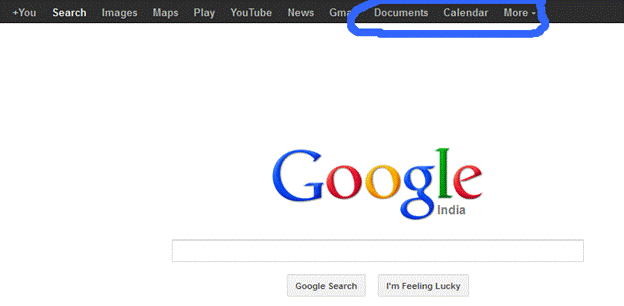
The first thing to do after installing this add-on is to find the Screen Draw icon, after that click on that icon. After clicking of the icon, you will see a toolbar where you can select brushes, color, eraser, save and many other options, which will fulfill your requirement. Try Screen Draw to draw something on your screen and then save it. You can save a complete webpage or a part of the webpage or drawing. The format of the image file can be png or jpeg, which is a common format for any image. Inserting shapes and text is also possible with this add-on, shapes such as circles, arrows and text, diagrams is also very easy to insert.
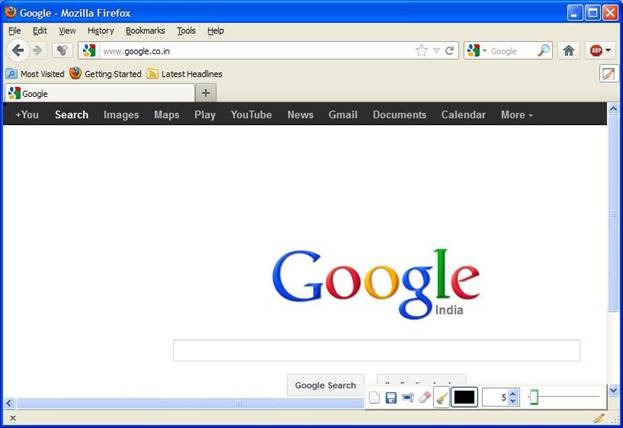
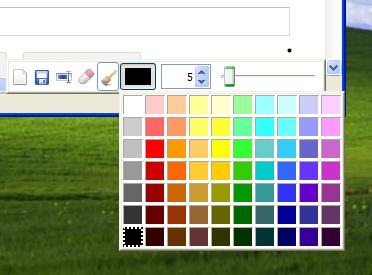
It is very simple to use. If you are a teacher, then this tool can be of great help for the students who are watching a projector or a screen. You can switch-off the screen draw add-on when it is unnecessary by clicking on the icon. The mouse makes use of the Screen Draw add-on. By clicking of the mouse, you can draw an image, add text or even change color of the brush or text. Wide range of color is supported by this add-on; the color grid contains lots of color to satisfy the needs of the user.
The preferences of the Screen Draw add-on can be changed very easily. To do this firstly go to the add-on section of your Firefox browser by clicking on the Tools -> Add-ons (Ctrl + Shift + A). Then find the Screen Draw add-on (Extensions section) and click on the options button. From here, you can also disable or uninstall this add-on.
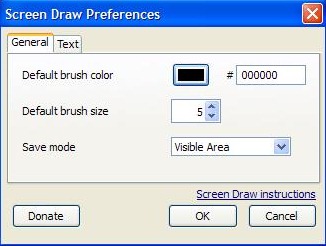
From here the default color of the brush, brush size and save mode can be changed. From the text tab, you can change the font family and font size.
Conclusion:
Screen Draw add-on can be helpful for those people who use screenshots for teaching or annotate something on the webpage. It is very easy to use and the functionalities are somewhat similar to the paint application in Windows platform. As this add-on is free Use it once, if you like it you can keep it or else uninstall it.
