Neo’s SafeKeys can help protect your login information by not requiring you to use your keyboard when logging into your online accounts. Keyloggers are a very serious threat which can cause you to lose login information for online accounts, but also your money by tracking what you type when you are paying with your credit cards online.
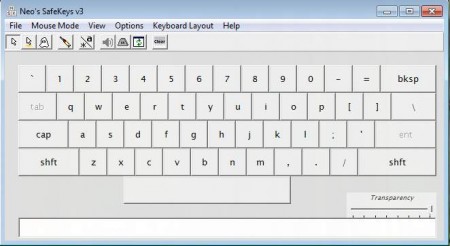
Neo’s SafeKeys is an onscreen keyboard which can be used to type out passwords in a protected environment which can then be copied into login forms of various different applications, browsers, instant messaging clients, even in online games like Runescape or World of Warcraft. Windows has its own keyboard, but Neo’s SafeKeys expands it and offers more protection.
How is Neo’s SafeKeys protecting what we type?
This anti-keylogging application actually has several different types of protection against keyloggers. The first and the most effective way of throwing keyloggers off the scent is by not using the keyboard. Keyboard inputs are not encrypted and can be easily read by keylogger, just like they can be easily read by browsers or text editors when we type something in them. With Neo’s SafeKeys, we type our password into the Neo’s password field first:
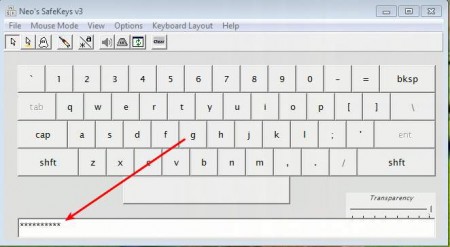
and then after we’ve entered our password in Neo’s SafeKeys, it can be selected and simply dragged&dropped in the password field of the website or the application that we are logging into:
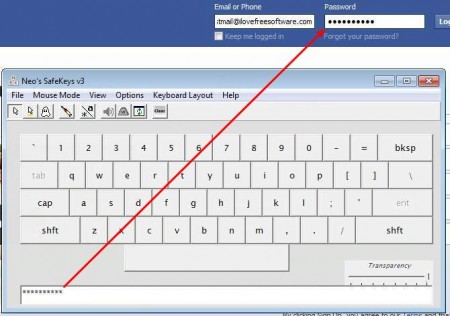
You might find that drag&drop doesn’t work in every application. Some programs are not made to receive drag&drop content into their input boxes, Neo’s SafeKeys has a solution for that also, the Injection mode for password input.
How to inject passwords if drag&drop doesn’t work?
Passwords can be transported from Neo’s SafeKeys with Injection the same way that they were put inside password boxes via drag&drop only now we have to change the program work mode from Drag and Drop mode to Injection mode:
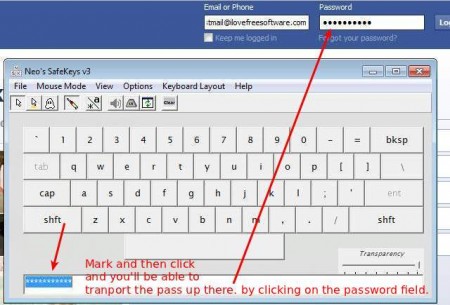
Notice that now that syringe icon next to the ghost icon is selected, that means that the injection mode is activated. To inject your password, when it’s written down in the password field below the keyboard, select it, make it all blue like it is on the image above and then left-click on it. Program will notify you that you’ve entered the injection mode with a small pop-up. Go to the password field where you need to enter your password, click inside it and wait. In a few seconds password should be typed in.
Screen Logger protection and hover keys key activation
Neo’s SafeKeys offers additional protection in the form of hover keys, where a key is pressed if you hover you mouse over the keyboard, and also with hiding the mouse pointer when typing the password. Pointer is not entirely hidden, it’s changed into a small dot, which hopefully will not be possible to see on-screen loggers, software that secretly takes screenshots of your desktop when you are typing passwords or even records videos. SafeKeys is a great tool that could improve the protection of your PC, you should especially use it if you are buying with your credit cards directly online, to protect your card numbers from theft.
