Power Lock is a simple and lightweight file and folder encryption software which can protect your data from being accessed by nosy friends, roommates or family members. Keeping privacy when we are sharing a computer with other people is never an easy thing to accomplish, with Power Lock you can password protect files so that only you can access them.
Similar software: File Secure Free, Secure Bin, Cobian Backup
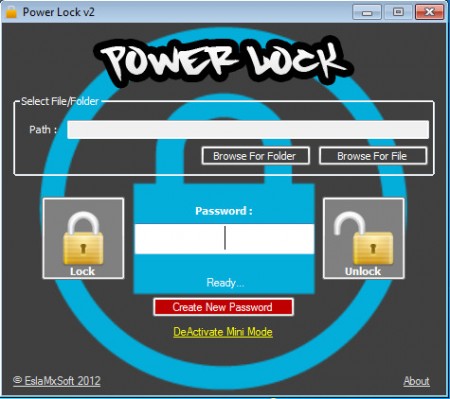
This is the default interface that waits for you after you start Power Lock. There is no installation, program runs right away and the way that password field starts blinking immediately asking for a password might confuse some. Similar file protection software usually asks for password in order to open up the main app, but how can you possibly know the password for Power Lock if this is the first time running the application. Don’t worry, the password that you’re asked here is not for program access it’s actually for file encryption, here’s how it works.
Free file and folder encryption with Power Lock
To start encrypting files and folders you’re gonna have to load them into the program by either clicking on the Browse For Folder or Browse For File buttons:
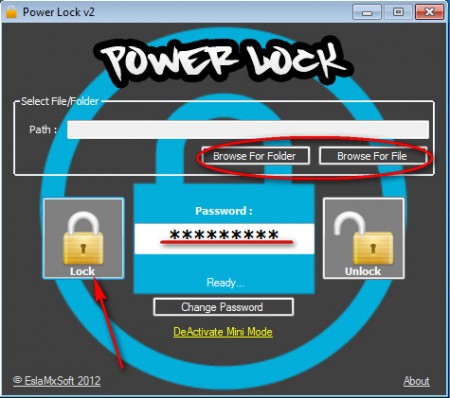
If you have a lot of files that you want to encrypt then it’s best that you put them all into one folder and add protection to them altogether instead of doing it one by one. Next thing that you have to do, after you’ve loaded data that you want to protect, you need to enter a password that you want to use. This is the reason why the password filed is present right away after starting the application. Once that you have all the files and folders loaded, you can click on Lock which will protect your data.
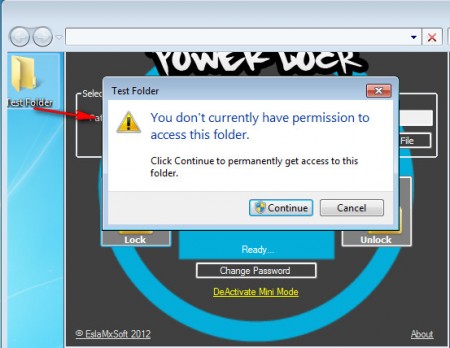
If you try to open up a folder which is password protected, you will receive a message that you can see on the image above. Make sure that you remember the password which you enter and be careful when entering the password, because there’s no confirm the password field so if you make a mistake while typing you won’t be warned.
Decrypting data protected with Power Lock
The same kind of error that you receive when opening a folder, which you can see above will be received when opening individual files that you password protect using Power Lock. In order to be able to access encrypted files again, they have to be decrypted by using the Unlock button that can be seen on the Power Lock main screen.
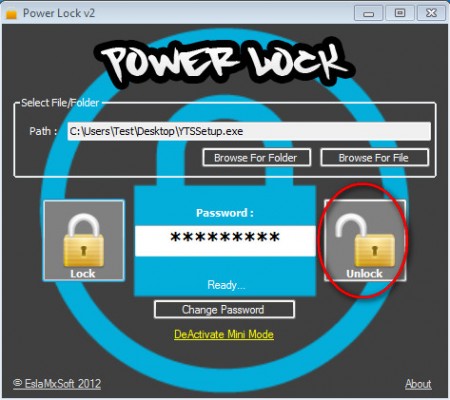
To decrypt that which was encrypted, do everything that you did when encrypting the file. Load the encrypted files into the program, then enter the password, which you used during encryption and hit the Unlock button on the right. Power Lock will then remove protection from the files and folders that you’ve selected and you’ll be able to access them once again. If you are looking for a small and easy utility for password protecting important PC data, then have a look at Power Lock, it’s exactly what you’re looking for.
