DesktopSaver is a free software that keeps track of the position of your desktop icons over time and helps to place them back to their previous position.

You might arrange various icons on the desktop in a particular manner but sometimes this arrangement gets disturbed due to some application crash, resolution change, or by mistake. You can right click on the desktop and choose the “Arrange icons by” option from the context menu to arrange the icons again but this arrangement won’t place the icons to the position of your choice. You can manually drag and place the icons back to the desired position; but again it takes time and you won’t necessarily remember all the previous positions.
Here comes this useful application which tracks the position of the desktop icons over time, saves the changes in separate profiles and keeps a history for you so that you might restore your previous arrangements whenever you want. Another similar program we reviewed earlier is Icon Restorer.
Reposition Desktop Icons using DesktopSaver:
DesktopSaver is a lightweight application which sits in your system tray as soon as you install it. It tracks the position of different icons on the desktop and provides various context menu options to save these arrangements as desktop profiles and reposition the icons back to their previous locations on desktop.
Also check our reviews on My Cool Desktop to arrange desktop icons in various shapes.
Features of DesktopSaver:
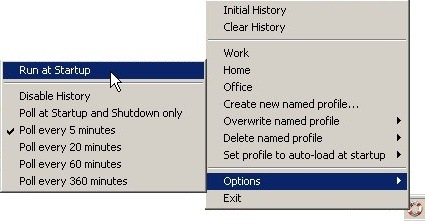
As you right click on the system tray icon of DesktopSaver, you will see various options which you can use to create desktop profiles, choose previous arrangements from history, set a particular arrangement to run at Windows startup, etc. Lets have a look on the important features in detail:
- Save History: As you launch the application, it tracks the initial setup of all your desktop icons and saves it as “Initial history”. Now as you reorder them, move them to a different location on desktop screen, add new icons, or remove any of them, it will keep track of all the changes and add them on top of its context menu list as separate history items.
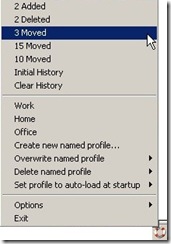
- In order to arrange the icons to their previous positions, you just need to select the history item from the list to reposition them back to a certain point of time.
- Clear history: This option lets you delete all the history items from the list.
- Create new named profile: DesktopSaver not only saves the positions of different desktop icons at a certain point of time, but also offers you to save any arrangement as a separate desktop profile with a specific name.
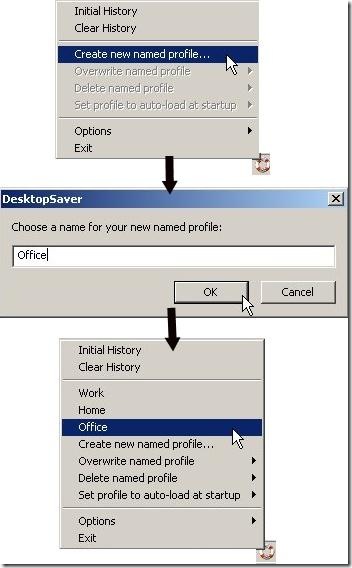
Each profile that you create will be added to the context menu list with its name. You can simply click on the name of the profile to arrange the icons as per the profile. - Overwrite named profile: You can overwrite a particular named profile with the current setting of your desktop icons.
- Delete named profile: You can delete a named profile if you don’t feel like using it anymore.
- Set profile to auto-load at startup: If you want your desktop icons to be arranged in a specific manner when you log on to Windows, you can create a named profile for that arrangement and choose the “set profile to auto-load at startup” option from the context menu list to place icons at the desired positions.
- Options: DesktopSaver provides some other options also like run at startup, disable history, set poll intervals, etc.
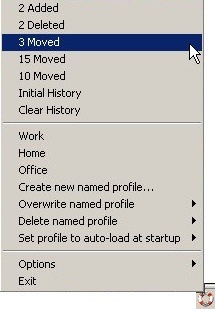
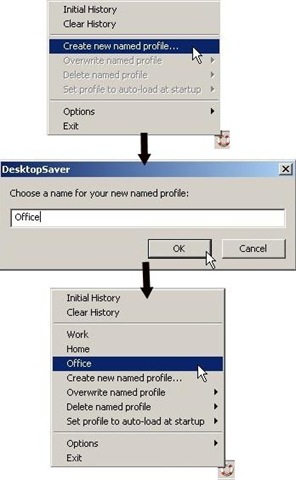
DesktopSaver is a good software which helps you to reposition icons on your desktop quickly and automatically.
