Easy Tether Lite is a free Android app to Share Android internet connection with computer or other devices. It allows to access internet connection of your Android phone on computer. If you have internet connection on your Android phone, then you can share that internet connection with your computer also. This is the smartest way to access one internet connection on both computer as well as on your Android phone. This app works with a USB connection that is why it is also called Android USB tether. Just share Android internet connection with PC in an easy way.
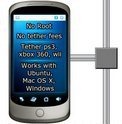
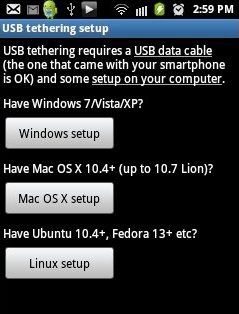
As soon as you install Easy Tether App, you will get a notification on your smart phone. To disable that notification from notification panel, click on the option “Select to disable” and then uncheck “USB” when you are not using the app. You can share Android internet connection with computer/laptop which includes Windows 7/Vista/XP as there operating system, Mac OS X 10.4+ (up to 10.7), Ubuntu 10.4+ and Fedora 13+. Also connecting the internet with different devices or operating system is very easy and the option are very clear.
You can check out Connectify for laptop to turn laptop into wireless hotspot reviewed by us.
Key Features Of Easy Tether App To Share Android Internet Connection:
-
You can share internet connection with computer and with some other operating systems via Android phone.
-
Internet connect is shared via USB cable.
-
Provides fast internet speed to PC, same as on Android.
-
Very easy setup and the option are very clear.
-
No rooting of phone is needed.
-
Disable/Enable notification anytime.
How To Get Connected And Share Android Internet Connection With Computer And Other Operating Devices:
-
Install “Easy Tether App” on your Android phone.
-
Download the driver setup on your computer according to your operating system. In case you don’t have internet connection on your computer then download the driver setup in your smartphone and copy that setup on your computer.
-
Install the setup downloaded on your computer.
-
Enable USB debugging from the settings menu on your Android phone.
-
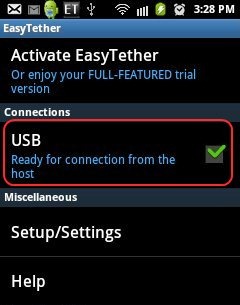
Connect your phone via USB cable and enable the “USB” option from the app. (When you install “Easy Tether App” first time on your smart phone, the “USB” option will be pre-activated by the app itself and you will get a notification on your smart phone).
-
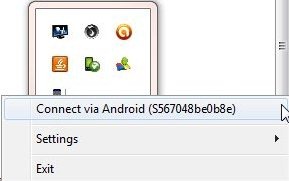
Click on “Connect via Android” from your computer/laptop.
-
As soon as you click on “Connect via Android” option, it will give you a pop up showing “connection established”. Now you are finally done with the process and can get internet access on your computer through your Android phone.
-
For disconnecting the shared Android internet connection, click on “Disconnect” option from the toolbar.
Also check out the Steps to Share Tata Photon between multiple computers reviewed by us.
How To Install Easy Tether Lite App:
-
Just login to “Android Market” or Scan the QR Code below.

-
Click on “Search” tab. Type “Easy Tether Lite” in search tab.
-
Click on “Easy Tether Lite”.
-
Click on “install”.
The free Easy Tether Lite App to share android internet connection will be automatically installed. Install this awesome Android USB tether today on your smart phone and access one single internet connection on your computer and Android via Android phone.
